4. Account Center
This section explains the signed-in user's account profile and account-level settings, including password maintenance and profile information.
4.1 Overview
The Account Center allows users to manage their own account information and personal settings. From this module, users can update their profile information, change their profile picture, reset their password, and view API information when permitted by their assigned role.
4.2 Access Account Center
Navigation
Click the User Avatar in the upper-right corner of the Customer Portal, then select Account Center.
The Account Center provides quick access to personal account management functions.
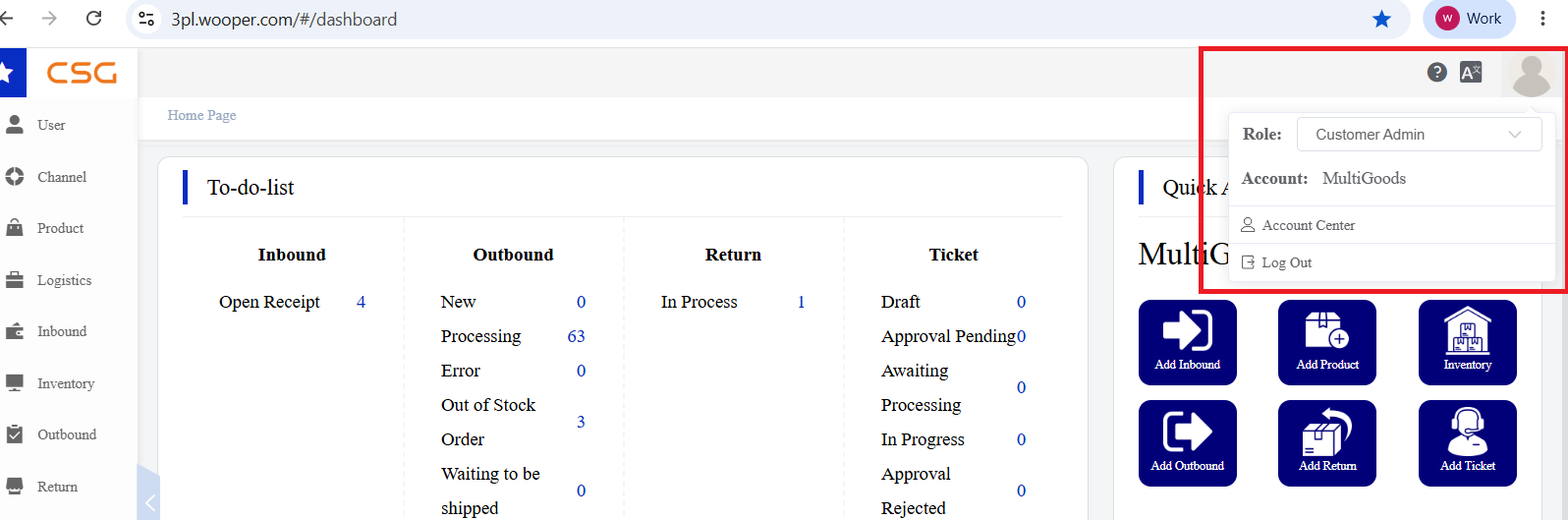
Figure 1. Access Account Center screen from the CSG ERP User Manual.
4.3 Personal Information
The Account Center displays the user’s personal account information.
| Item | Description |
|---|---|
| Login Account | The username used to log in to the portal |
| Name | The user or company display name |
| Belongs to Tenant | The tenant that the account belongs to |
| Change Password | Allows the user to update the login password |
| Valid From | The account activation date |
| API Key | The API key assigned to the account |
| Profile Picture | The user profile image |
4.4 Change Profile Picture
Users can update their profile picture in the Account Center.
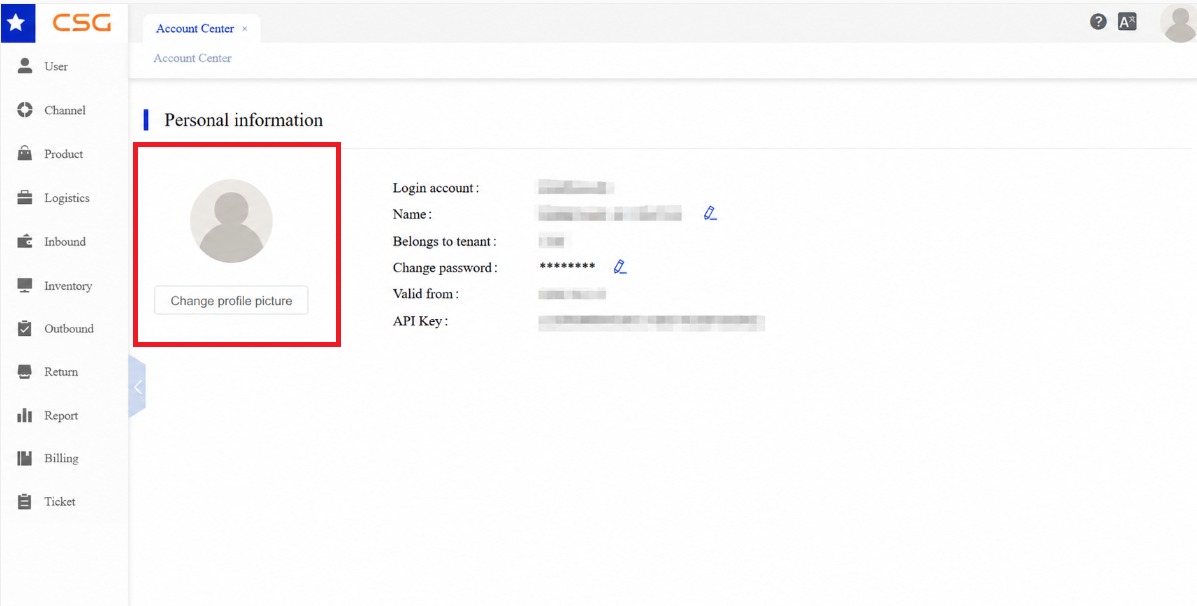
Figure 2. Change Profile Picture screen from the CSG ERP User Manual.
Steps
Step 1: Open the Account Center page.
Step 2: Click Change Profile Picture.
Step 3: Select an image from the local device.
Step 4: Save the changes.
4.5 Change Password
Users can update their login password through the Account Center.
Steps
Step 1: Open the Account Center page.
Step 2: Click the edit icon next to Change Password.
Step 3: Enter the following information:
Old password
New password
Confirm new password
Step 4: Click Confirm to save the changes.
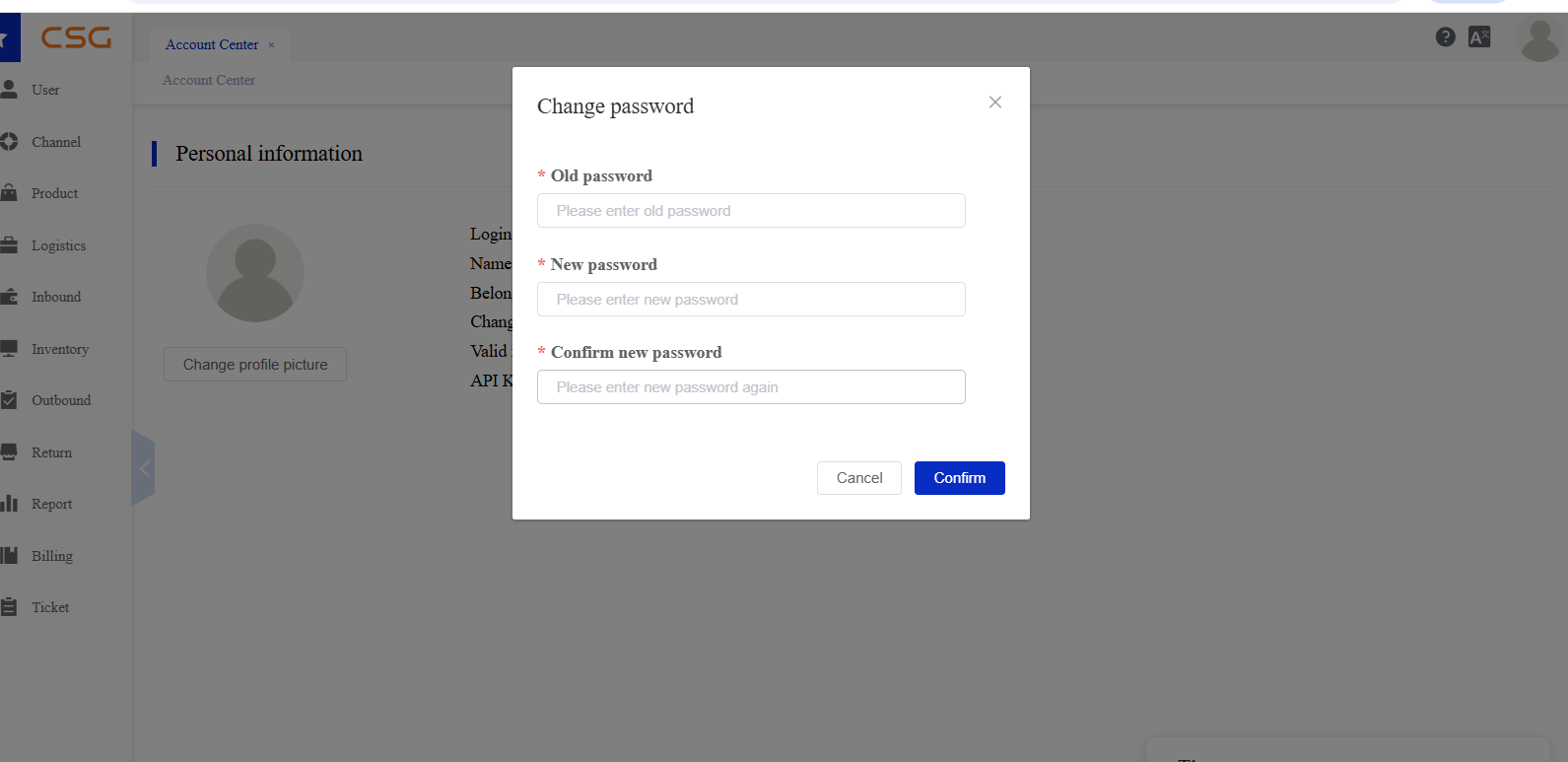
Figure 3. Change Password screen from the CSG ERP User Manual.
4.6 API Key
The API Key area is visible only to users whose assigned roles include the relevant permission.
The system supports two API connection methods depending on your account configuration.
Option 1 – Existing API Key
If an API Key has already been configured, it will be displayed on this page and can be used directly for system integration.
Figure 4. API Key screen from the CSG ERP User Manual.
Option 2 – New API Connection
If no API Key is available, click Add New API Connection to generate a new API Key for external system integration.
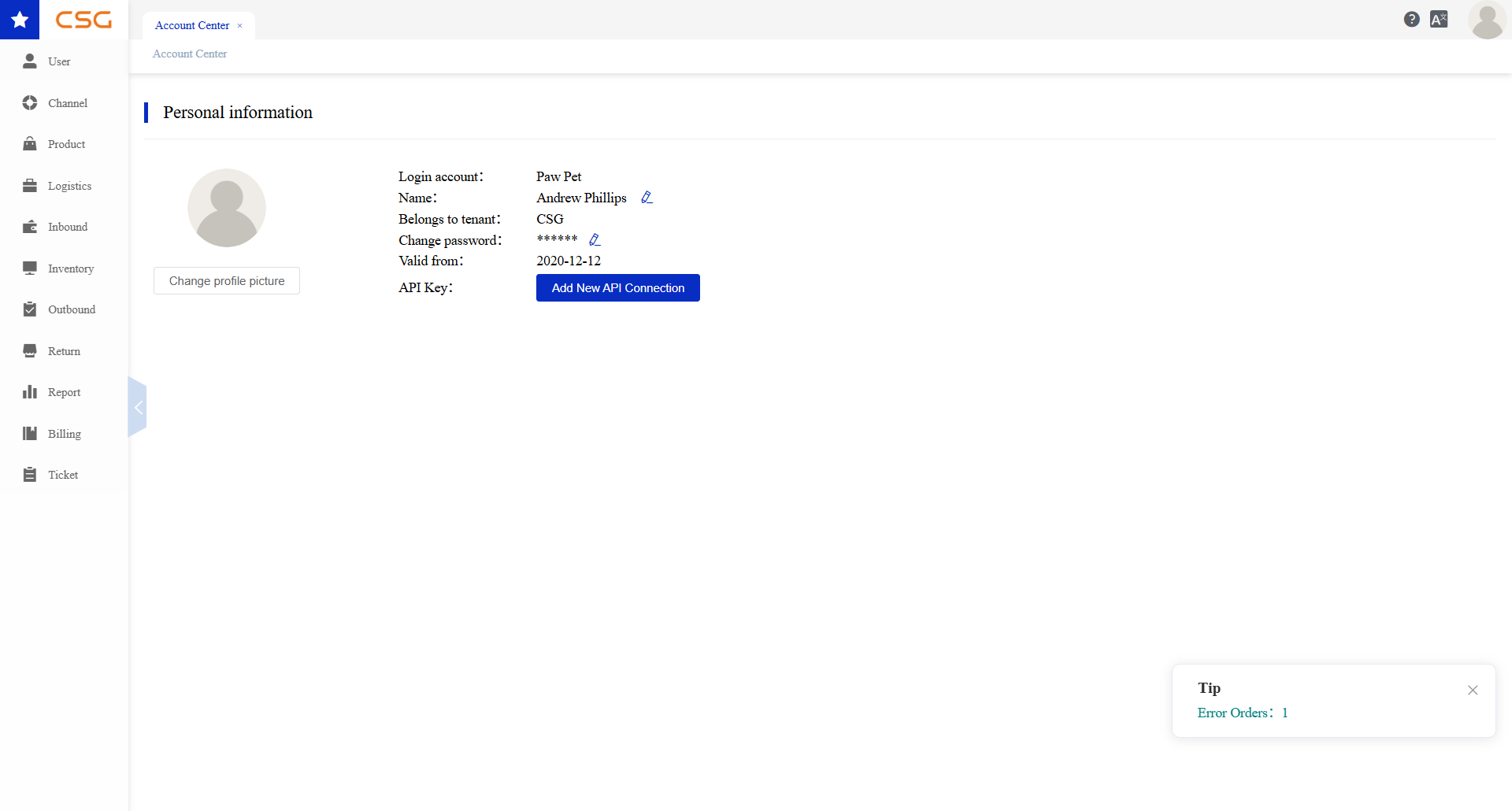
Figure 5. API Key screen from the CSG ERP User Manual.
Note: API functionality is optional and is intended for customers who need to integrate the ERP system with third-party applications.
Source
CSG ERP User Manual, section 4, "Account Center".