7. Product
The Product module maintains product and SKU master data used by inbound, inventory, outbound, and connected-channel processes.
7.1 Overview
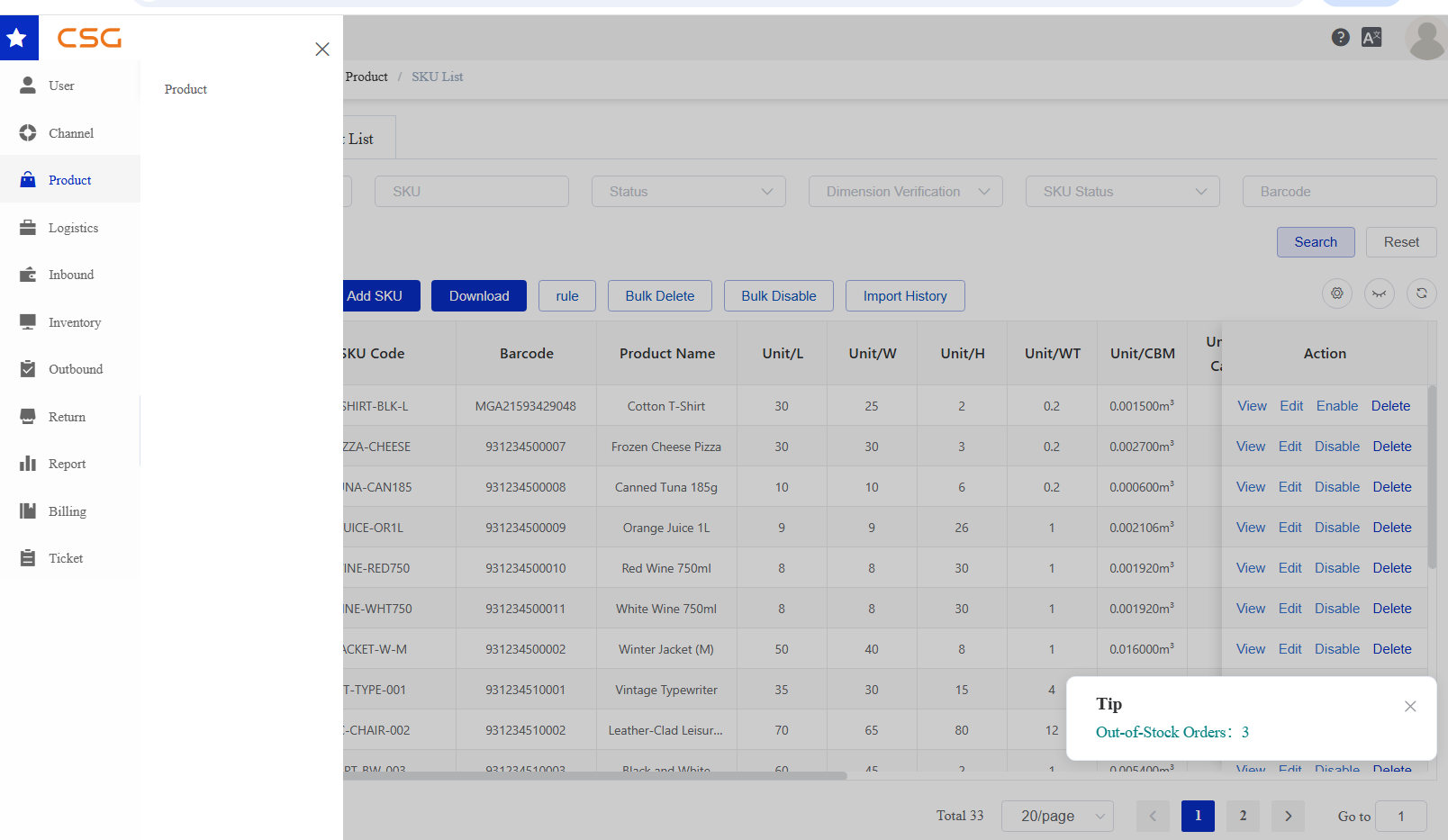
Figure 1. Overview screen from the CSG ERP User Manual.
The Product module is used to maintain all products that can be processed by the CSG Customer Portal and the System.
Before orders can be fulfilled, all products sold through connected sales channels should be created and maintained in the Product module. During order synchronization, the system matches the product SKU received from the sales channel with the corresponding SKU configured in the Customer Portal. This ensures that orders can be correctly identified and processed by the warehouse.
The Product module consists of two sections:
SKU List – Used to manage individual inventory products. Each SKU represents a single physical product with its own product information, barcode, dimensions, and weight.
Sales Kit List – Used to manage bundle products composed of multiple individual SKUs. During order fulfillment, the system automatically expands the Sales Kit into its component SKUs for inventory allocation and warehouse picking.
Key Functions
Users can:
Create and maintain product records.
Import and export product information.
Search and update existing products.
Enable, disable, or delete product records.
Create and maintain Sales Kits.
Import Sales Kit information in bulk.
Notes
Each SKU Code and barcode must be unique within the system. A barcode corresponds to one SKU.
The SKU configured in the Customer Portal should match the SKU used in connected sales channels (such as Shopify or WooCommerce) to ensure successful order processing.
All component SKUs must exist in the SKU List before they can be added to a Sales Kit.
7.2 SKU List
7.2.1 Overview
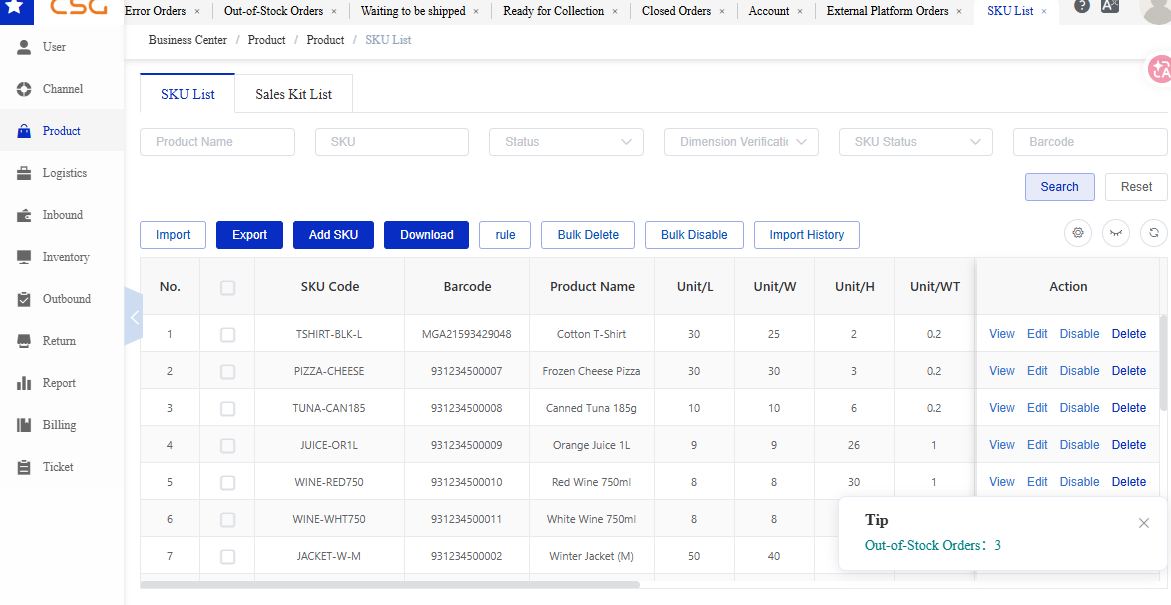
Figure 2. Overview screen from the CSG ERP User Manual.
Navigation
The SKU List is used to manage individual products within the Customer Portal. Each product is identified by a unique SKU Code, which serves as the primary product identifier throughout the Customer Portal and Warehouse Management System (WMS).
Each SKU record stores the product information required for inventory management, order processing, warehouse operations, and shipping calculations.
Before orders from connected sales channels can be processed, the corresponding SKU should be created in the SKU List. During order synchronization, the system matches the SKU received from the external sales channel with the SKU maintained in the Customer Portal. Orders containing unmatched SKUs cannot be processed until the SKU information is correctly configured.
Users can:
Search SKU records.
Create new SKUs.
Import SKU information in bulk.
Export SKU data.
View and update SKU information.
Enable or disable SKUs.
Delete SKUs (where permitted)
Notes
Each SKU Code must be unique.
The SKU Code should match the SKU used in connected sales channels (such as Shopify or WooCommerce).
Barcode is used during warehouse operations for product scanning and identification.
Product dimensions and weight are used for warehouse handling and shipping calculations.
7.2.2 SKU Information

Figure 3. SKU Information screen from the CSG ERP User Manual.
Each SKU record contains the following information.
| Field | Description |
|---|---|
| No. | Sequence number of the SKU record in the list. |
| SKU Code | Unique product identifier used throughout the Customer Portal and WMS. |
| Barcode | Scannable product code used for product identification during warehouse operations. |
| Product Name | Name of the product associated with the SKU. |
| Unit/L | Length of one individual product unit. |
| Unit/W | Width of one individual product unit. |
| Unit/H | Height of one individual product unit. |
| Unit/WT | Weight of one individual product unit. |
| Unit/CBM | Cubic volume of one individual product unit, displayed in cubic metres. |
| Unit per Carton | Number of individual product units packed in one carton. |
| Carton/L | Length of the shipping carton. |
| Carton/W | Width of the shipping carton. |
| Carton/H | Height of the shipping carton. |
| Carton/WT | Total weight of the shipping carton. |
| Carton/CBM | Cubic volume of the shipping carton, displayed in cubic metres. |
| Description | Additional product description or handling information. |
| Cost Price | Cost price recorded for the product. |
| Status | Current validity status of the product record, such as Effective. |
| Batch and Expiration | Indicates whether batch number and expiration-date management are enabled for the SKU. |
| Dimension Verification | Indicates whether the product dimensions and weight have been checked and verified. |
| SKU Status | Indicates whether the SKU is currently enabled or disabled for system operations. |
| Action | Available actions for the SKU, including View, Edit, Enable/Disable, and Delete. |
7.2.3 Search SKU
Users can search products using multiple filter conditions.
Search Criteria
| Field | Description |
|---|---|
| Product Name | Product description |
| SKU | SKU code |
| Status | Product status |
| Dimension Verification | Dimension verification status |
| SKU Status | Current SKU status |
| Barcode | Product barcode |
Steps
Navigate to Product → SKU List.
Enter one or more search conditions.
Click Search.
Review the search results.
Notes
Multiple search conditions can be combined.
Click Reset to clear all search criteria.
7.2.4 Import SKU
The Import function allows users to create or update multiple SKU records in bulk using the predefined SKU import template.
During the import, the system uses the SKU Code to identify each product:
If the SKU Code already exists in the system, the corresponding SKU record will be updated using the information provided in the import file.
If the SKU Code does not exist, the system will create a new SKU record.
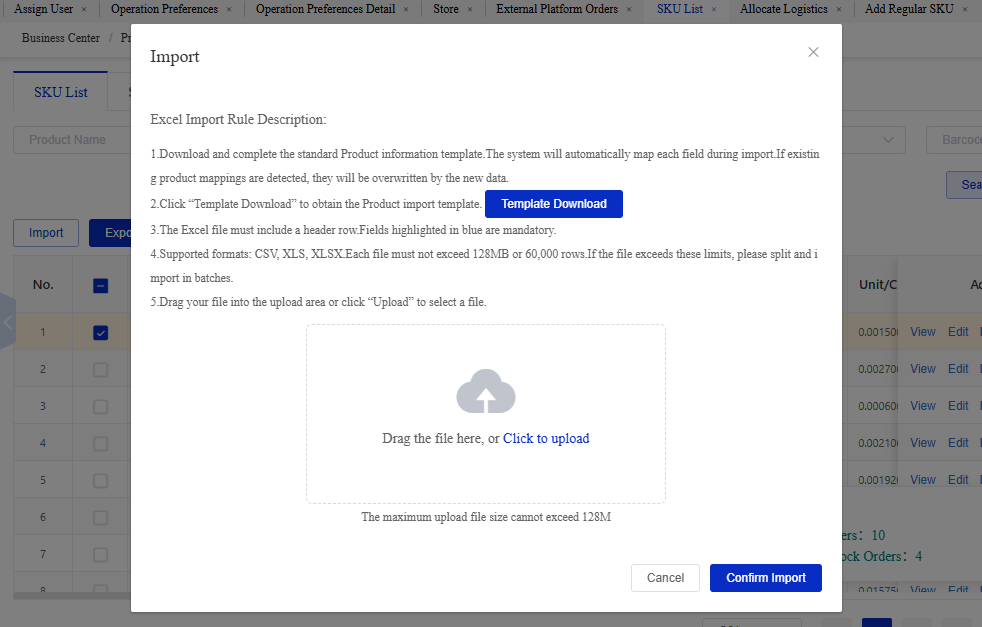
Figure 4. Import SKU screen from the CSG ERP User Manual.
Steps
Click Download to obtain the import template.
Fill in SKU information according to the template format.
Click Import.
Select the completed file.
Click Upload.
7.2.5 Export SKU
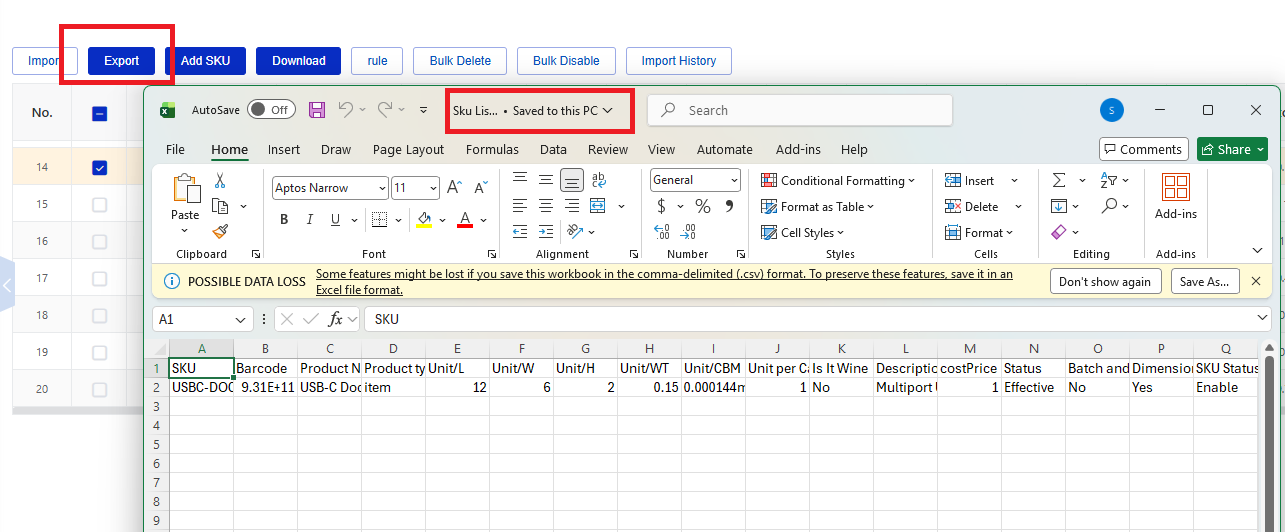
Figure 5. Export SKU screen from the CSG ERP User Manual.
Users can export SKU information for reporting or data maintenance.
Steps
Apply search filters if required.
Click Export.
Download the generated file.
7.2.6 Add SKU
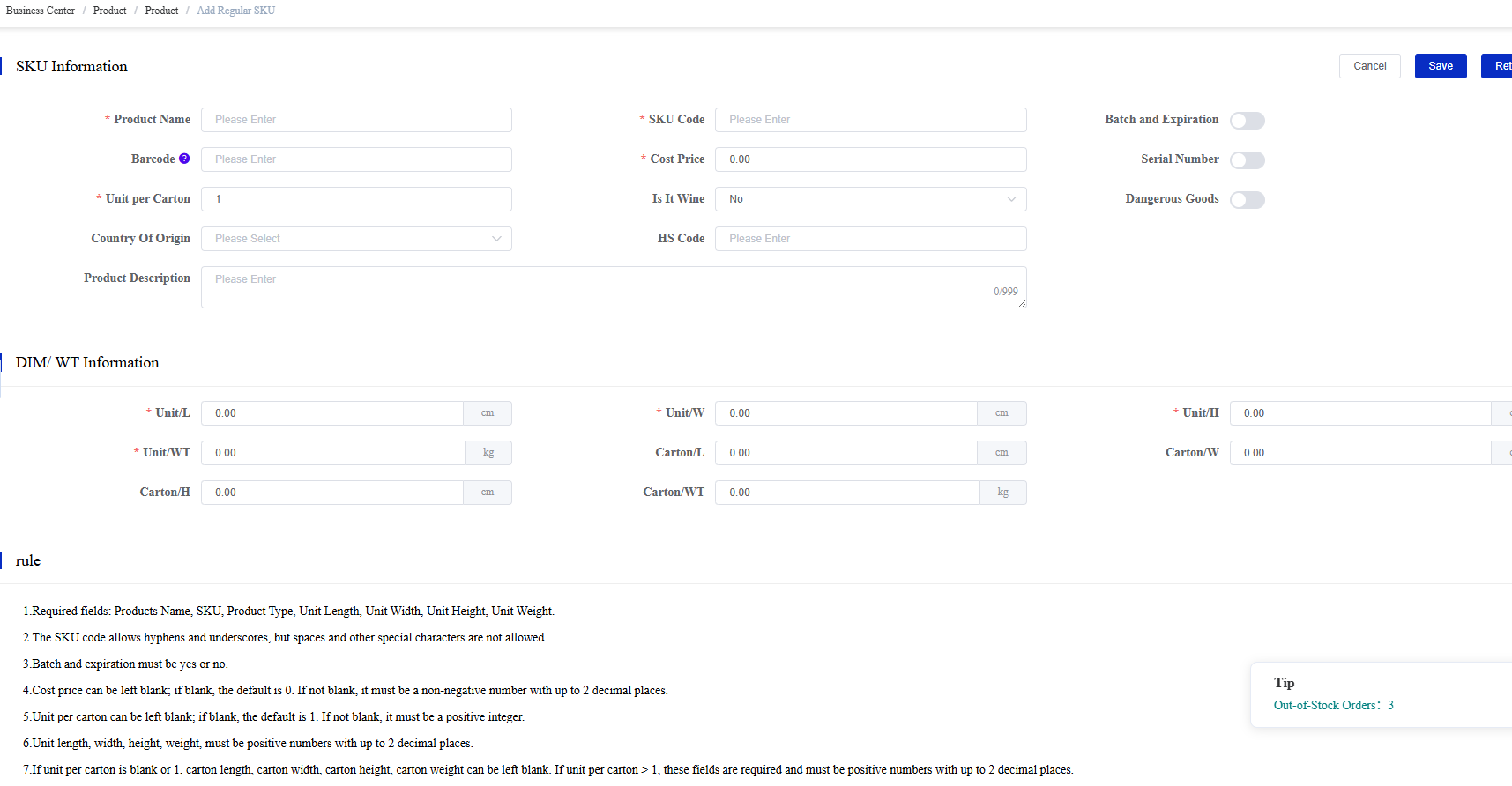
Figure 6. Add SKU screen from the CSG ERP User Manual.
Users can manually create a new SKU record.
Steps
Navigate to Product → SKU List.
Click Add SKU.
Enter the required product information, including:
Product Name
SKU Code
Barcode
Batch and Expiration (if applicable)
Dimensions
Weight
Click Save.
Important Product Settings
- SKU Code The SKU Code is the unique identifier used throughout the Customer Portal and WMS. It links the product to inventory, inbound receipts, outbound orders, and external sales channels.
Important: The SKU Code must be unique and should match the SKU used in connected sales platforms (such as Shopify, WooCommerce, or Unleashed). An incorrect SKU Code may prevent orders from being matched and processed correctly.
- Barcode The Barcode is used for warehouse scanning during receiving, picking, packing, stocktaking, and other warehouse operations.
Recommendation: Assign one system-unique barcode to each SKU to improve warehouse accuracy and efficiency.
- Batch and Expiration Enable Batch and Expiration only for products that require batch tracking or expiry date management.
Batch management allows the system to track inventory by production or receiving batch instead of only by SKU. It is commonly used for products that require traceability, quality control, product recalls, or expiry date management, such as food, beverages, pharmaceuticals, cosmetics, and other regulated products.
If Batch and Expiration is enabled:
Warehouse staff must record the Batch Number and Expiration Date during inbound receiving.
Inventory is managed separately for each batch.
The system can support batch traceability, expiry monitoring, and stock allocation by batch.
Important:
If your product requires batch tracking or has an expiration date, you should enable Batch and Expiration when creating the SKU. Failure to do so may prevent the system from tracking batches, monitoring expiry dates, and supporting product traceability or recalls.
Notes
SKU Code must be unique.
If the product requires batch tracking or has an expiration date, Batch and Expiration should be enabled before the SKU is used.
Accurate dimensions and weight are required for warehouse storage calculations and shipping cost calculations.
Once the SKU has been used in inventory transactions, some settings may be restricted from further modification.
- Dimension The Dimensions (Length, Width, Height, Weight, and CBM) represent the physical shipping characteristics of the product.
These values are used by the system to:
Calculate warehouse storage space
Calculate storage fees
Estimate shipping and freight costs
Assist with courier service selection
Improve warehouse planning and handling
Important: Enter the actual product dimensions and weight. Incorrect dimension data may result in inaccurate storage charges, shipping costs, and warehouse operations.
7.2.7 Download
The Download function is used to generate and download barcode labels for selected SKU records.
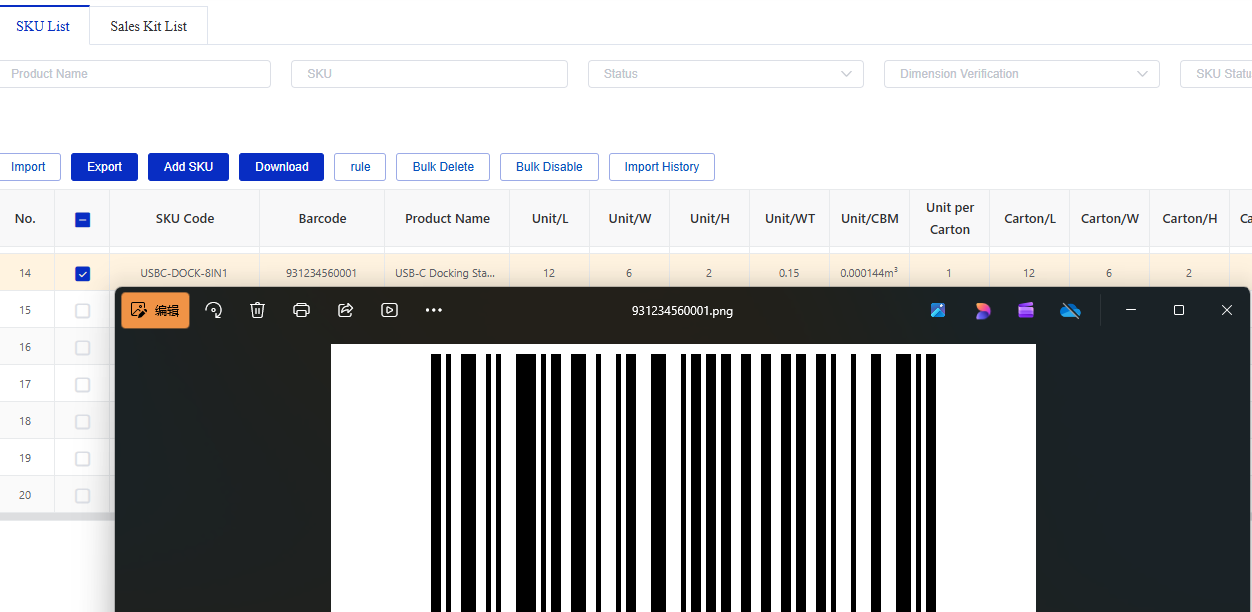
Figure 7. Download screen from the CSG ERP User Manual.
Steps
Select one or more SKU records.
Click Download.
The system generates barcode labels for the selected products.
Notes
The downloaded file contains barcode labels only and is intended for printing.
This function does not export SKU or product master data.
Ensure the selected SKU has a valid barcode before downloading.
Downloaded barcode labels can be printed and attached to products or cartons for warehouse scanning.
7.2.8 Edit SKU
Users can update existing SKU information.
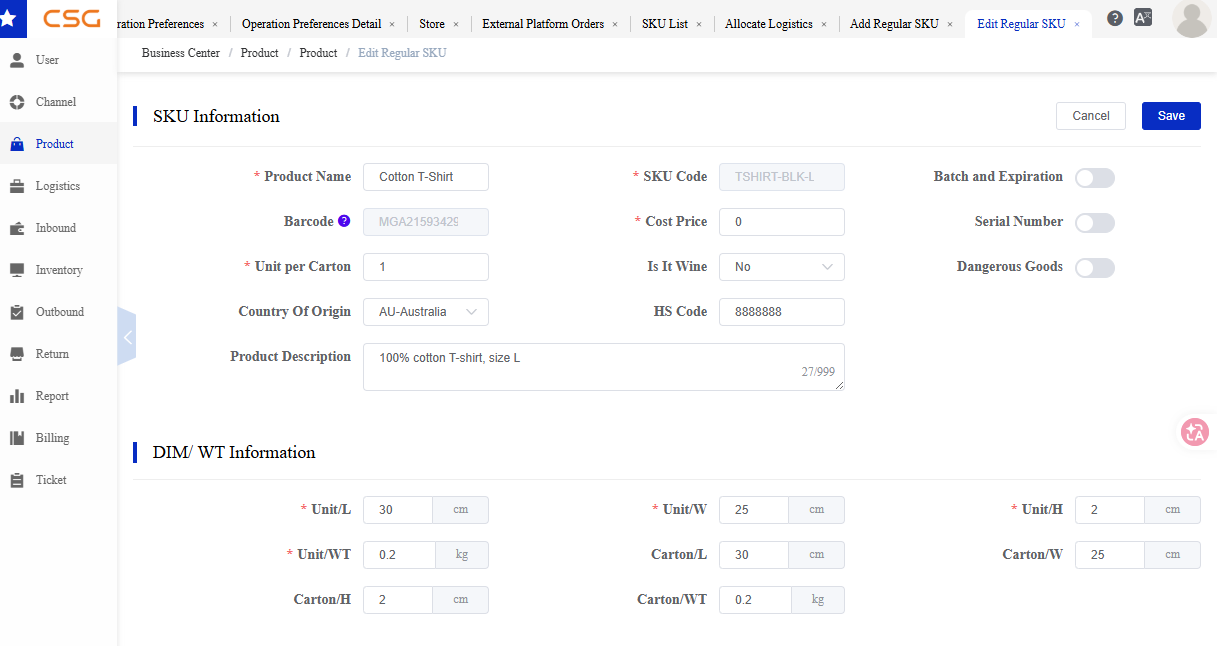
Figure 8. Edit SKU screen from the CSG ERP User Manual.
Steps
Locate the SKU in the SKU List.
Click Edit.
Modify the required fields.
Click Save.
7.2.9 Disable SKU
The Disabled function marks a SKU as inactive without removing its existing records or transaction history.
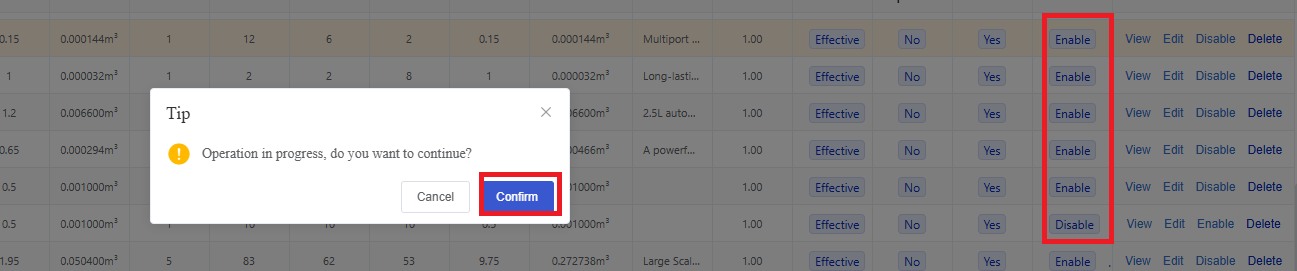
Figure 9. Disable SKU screen from the CSG ERP User Manual.
Steps
Navigate to Product → SKU List.
Select the SKU.
Click Disable.
Confirm the action.
Notes
Disabled SKUs remain in the system for historical reference.
Existing inventory and transaction records are preserved.
A disabled SKU cannot normally be used for new business transactions until it is enabled again.
The barcode remains associated with the disabled SKU and cannot be reused for another SKU.
Use Disable when a product is discontinued or temporarily unavailable but historical records need to be retained.
7.2.10 Delete SKU
The Delete function permanently removes a SKU record from the system.
Steps
Navigate to Product → SKU List.
Select the SKU to be removed.
Click Delete.
Confirm the deletion.
Notes
A SKU cannot be deleted if it has been used in business transactions, such as Inbound Receipts, Inventory, Outbound Orders, or other related records.
Delete is intended only for unused or incorrectly created SKU records.
If the SKU is no longer required but has existing transaction history, use Disable instead of Delete.
7.3 Sales Kit list
7.3.1 Overview
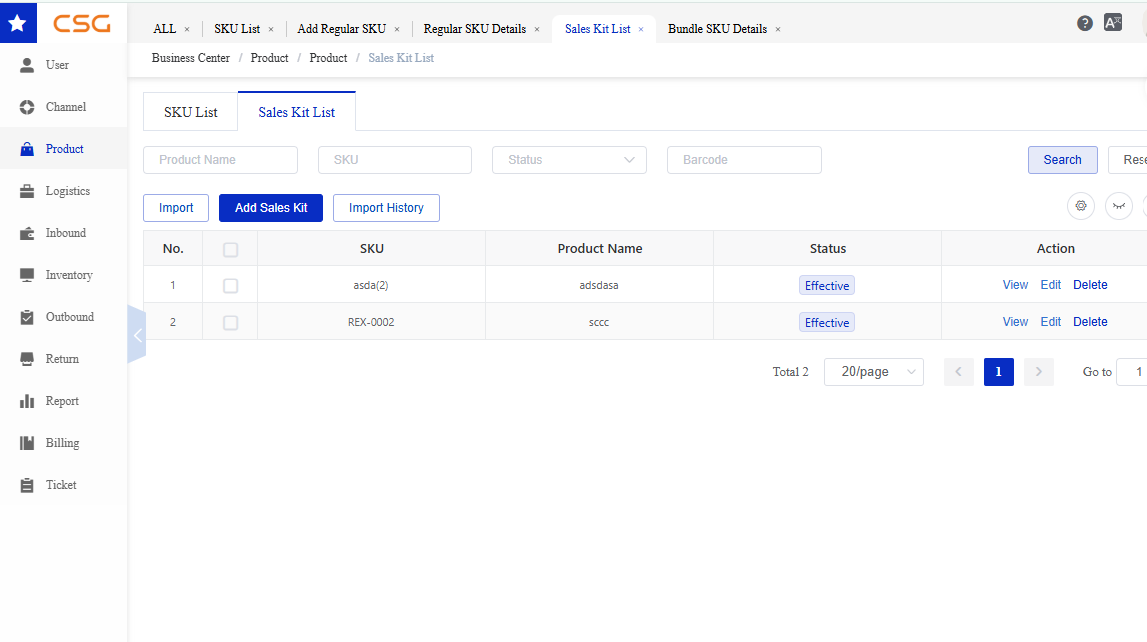
Figure 10. Overview screen from the CSG ERP User Manual.
The Sales Kit List is used to manage bundled products (Sales Kits) within the Customer Portal.
A Sales Kit is a bundle product composed of multiple individual SKUs. Although it is sold as a single product, the system automatically expands the Sales Kit into its component SKUs during order fulfillment. Inventory is allocated and deducted based on the component SKUs rather than the Sales Kit itself.
Users can:
Search Sales Kits
Create new Sales Kits
Import Sales Kit information
View Sales Kit details
Edit Sales Kits
Delete Sales Kits
Navigation
The Sales Kit List page displays all Sales Kits created under the customer account.
Note: All component SKUs must already exist in the SKU List before they can be added to a Sales Kit.
7.3.2 Sales Kit List Information
Available Functions
| Function | Description |
|---|---|
| Search | Search Sales Kit records. |
| Reset | Clear all search conditions. |
| Import | Import Sales Kit records in bulk. |
| Add Sales Kit | Create a new Sales Kit. |
| Import History | View previous Sales Kit import records. |
Sales Kit Information
| Field | Description |
|---|---|
| No. | System sequence number. |
| SKU | Sales Kit SKU code. |
| Product Name | Sales Kit product name. |
| Status | Current Sales Kit status. |
| Action | Available actions for the Sales Kit. |
7.3.3 Search Filters
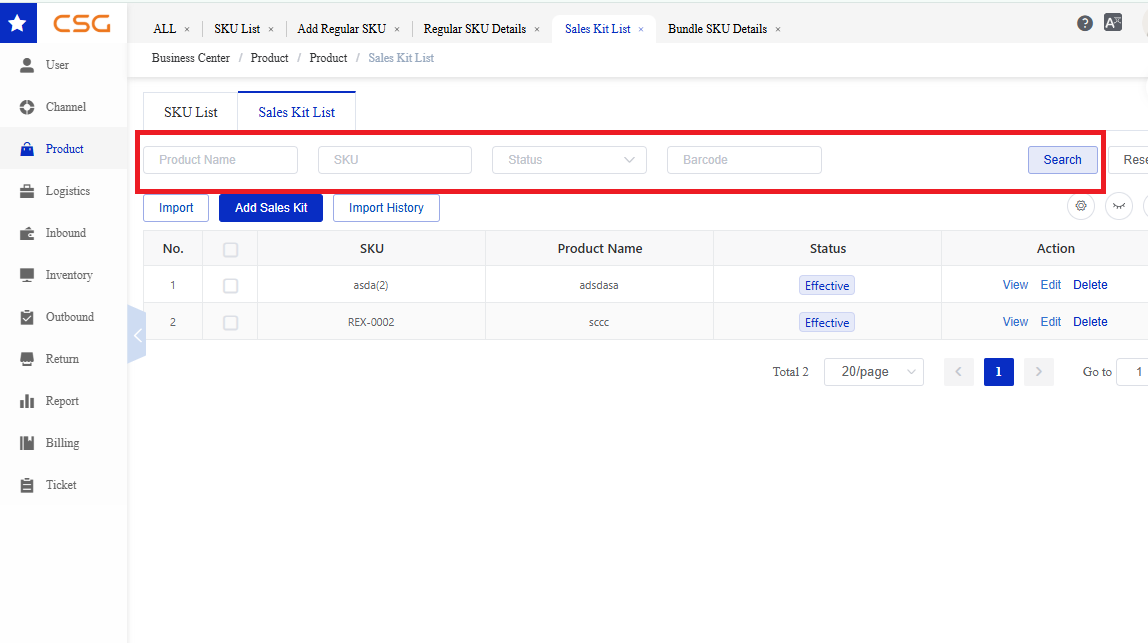
Figure 11. Search Filters screen from the CSG ERP User Manual.
Users can search Sales Kit records using the following criteria:
| Field | Description |
|---|---|
| Product Name | Search by Sales Kit product name. |
| SKU | Search by Sales Kit SKU. |
| Status | Filter by Sales Kit status. |
Steps
Enter one or more search conditions.
Click Search.
Review the matching Sales Kit records.
7.3.4 Add Sales Kit
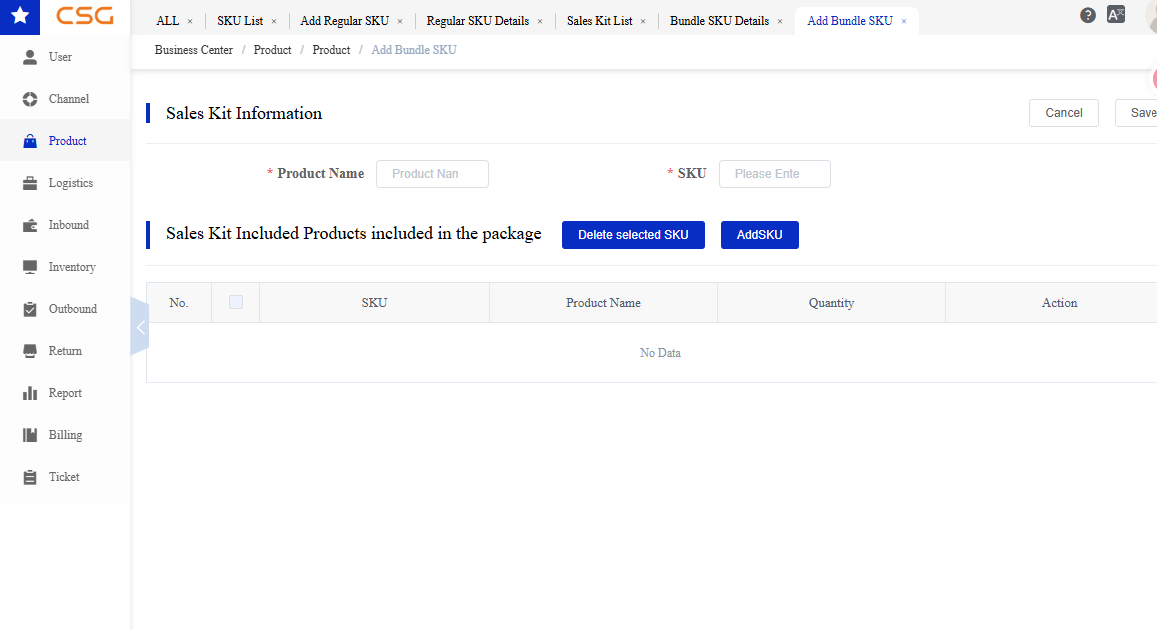
Figure 12. Add Sales Kit screen from the CSG ERP User Manual.
Users can create a new bundled product by combining multiple SKUs into a single Sales Kit.
Steps
Navigate to Product → Sales Kit.
Click Add Sales Kit.
Enter the Sales Kit information.
Select the component SKUs.
Enter the quantity for each component SKU.
Click Save.
Notes
The Sales Kit SKU must be unique.
All component SKUs must already exist in the SKU List.
A Sales Kit must contain at least one component SKU.
7.3.5 Import Sales Kit
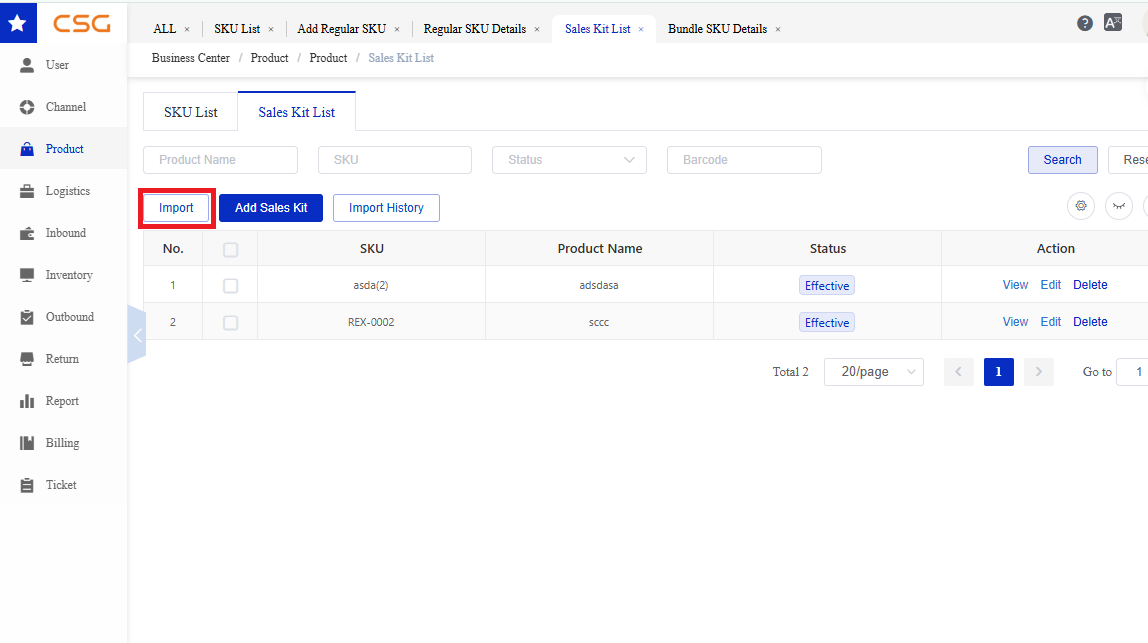
Figure 13. Import Sales Kit screen from the CSG ERP User Manual.
Users can import multiple Sales Kits using an import template.
Steps
Download the Sales Kit template (if available).
Complete the required Sales Kit information.
Click Import.
Upload the completed file.
Review the import result.
Notes
Import data must follow the provided template.
Component SKUs must already exist in the SKU List.
Invalid SKU Codes will cause the import to fail.
7.3.6 View Sales Kit Details
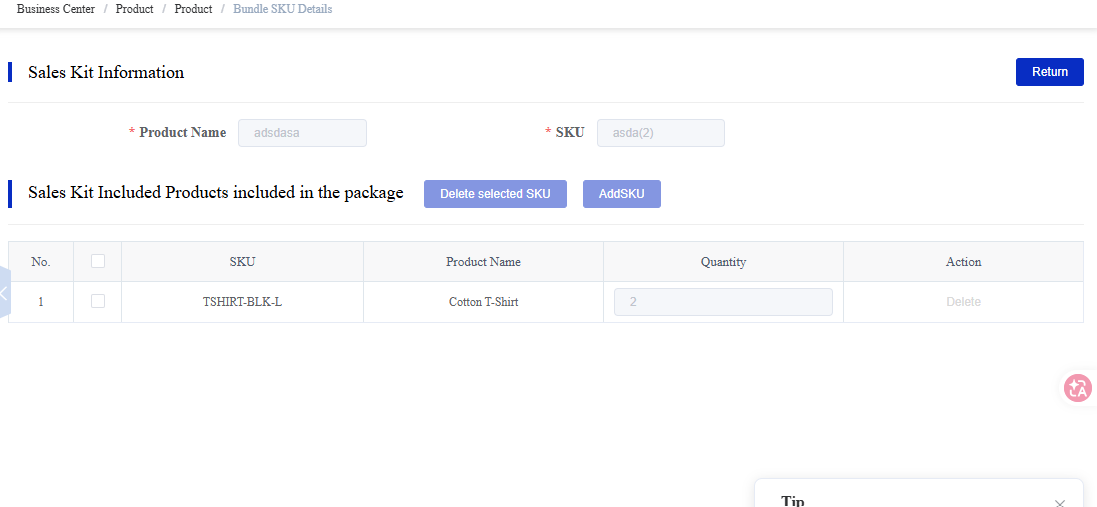
Figure 14. View Sales Kit Details screen from the CSG ERP User Manual.
Users can click View to check the products included in a Sales Kit.
The Sales Kit Details page displays:
Sales Kit SKU
Product Name
Component SKU List
Quantity of each component SKU
Status
7.3.7 Edit Sales Kit
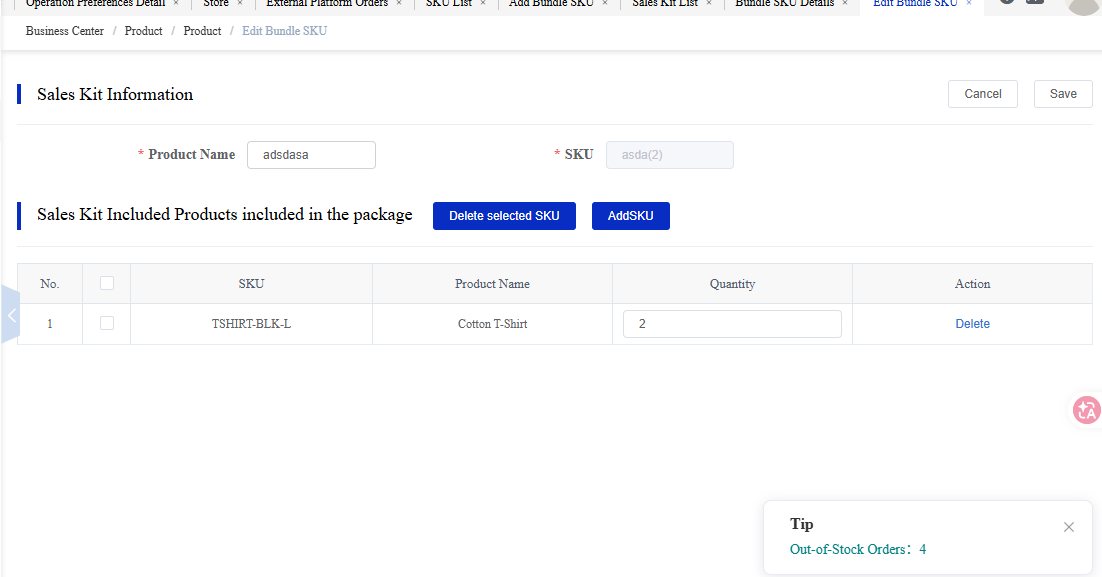
Figure 15. Edit Sales Kit screen from the CSG ERP User Manual.
Users can modify an existing Sales Kit by updating its basic information or maintaining the component SKU list.
Available actions include:
Update the Sales Kit name
Add component SKUs
Remove component SKUs
Modify the quantity of component SKUs
Save the changes
Note: Component SKUs must exist in the SKU List before they can be added to a Sales Kit.
7.3.8 Delete Sales Kit
Users can permanently remove a Sales Kit from the system.
Steps
Navigate to Product → Sales Kit.
Locate the required Sales Kit.
Click Delete.
Confirm the deletion.
Notes
Deleted Sales Kits cannot be recovered.
Sales Kits referenced by active orders or other system processes may not be deleted.
Source
CSG ERP User Manual, section 7, "Product".