12. Returns Management
Returns Management is used to create and monitor return instructions and the warehouse processing of returned goods.
12.1 Overview
The Returns module is used to manage customer goods returned after outbound shipment. Returned products are inspected by the warehouse: products in acceptable condition can be returned to inventory, while damaged or otherwise non-conforming products are recorded and reported for follow-up. Users can create return requests, record returned items, monitor return processing, and review completed return records.
The module contains two sections:
Open Return List – Displays return requests that are still being processed and allows users to create, edit, or delete return requests.
Close Return List – Displays completed return records for reference and auditing.
12.2 Open Return List
Overview
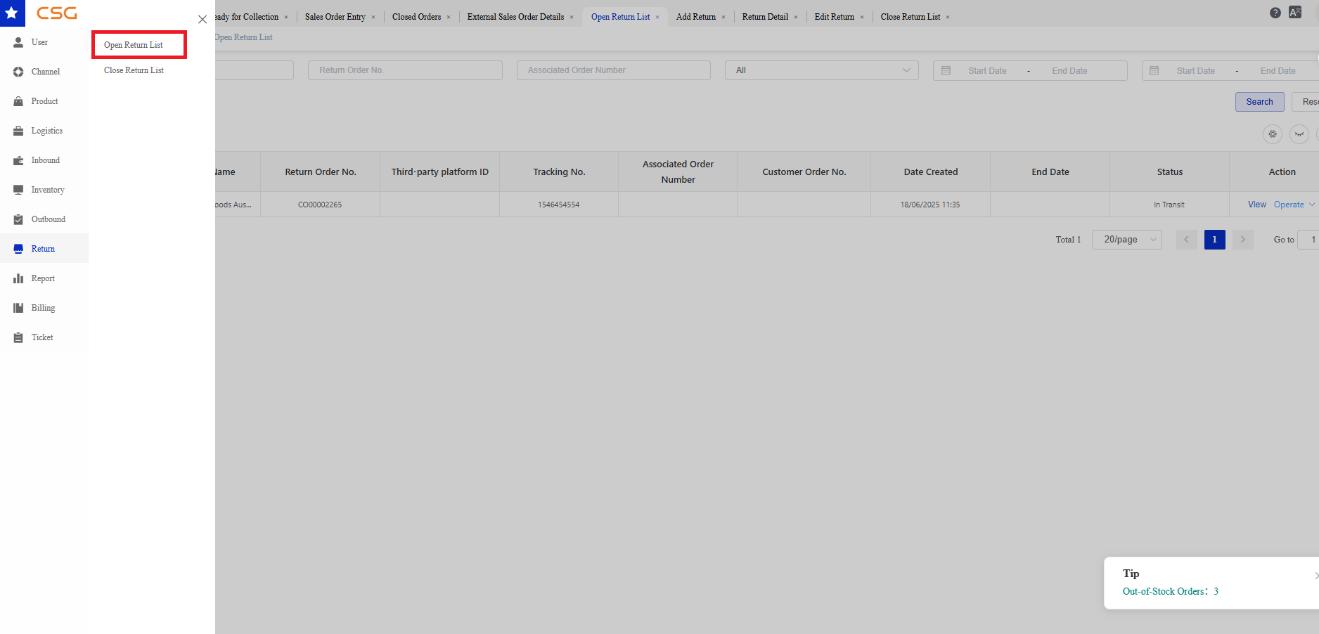
Figure 1. Open Return List screen from the CSG ERP User Manual.
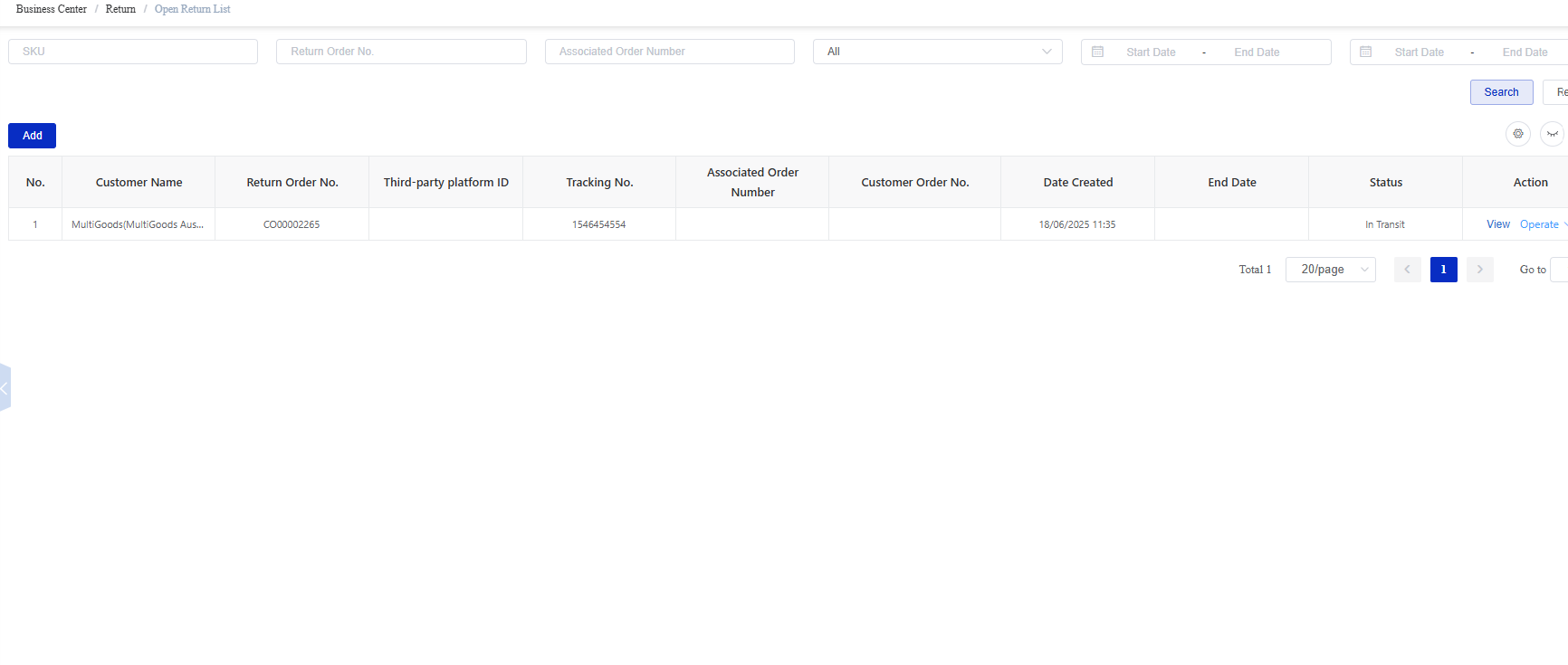
Figure 2. Open Return List screen from the CSG ERP User Manual.
The Open Return List displays return requests that are currently being processed.
Users can:
Search return requests
Create a new return request
View return details
Edit return information
Delete a return request
Available Functions
| Function | Description |
|---|---|
| Search | Search return requests using available filters. |
| View | View the details of a return request. |
| Add Return | Create a new return request. |
| Edit | Modify an existing return request before it is completed. |
| Delete | Delete a return request that is no longer required. |
Add Return
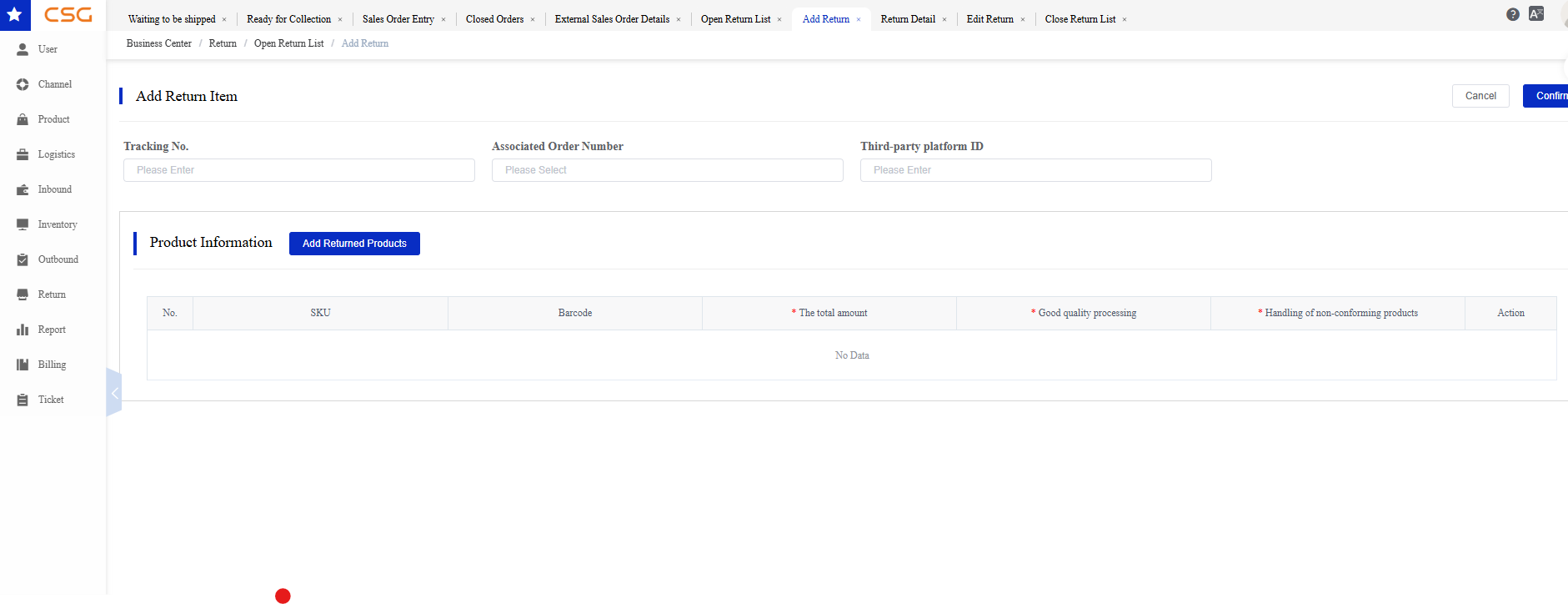
Figure 3. Open Return List screen from the CSG ERP User Manual.
Click Add Return to create a new return request.
The following information can be entered:
Tracking Number
Associated Order Number
Third-party Platform ID
Returned Products
Return Quantity
Good Quality Processing
Handling of Non-conforming Products
Click Add Returned Products to add one or more returned SKUs.
After all required information has been entered, click Confirm to create the return request.
Notes
Multiple returned products can be added to one return request.
Each returned product requires a processing method.
Required fields are marked with a red asterisk (*).
View Return
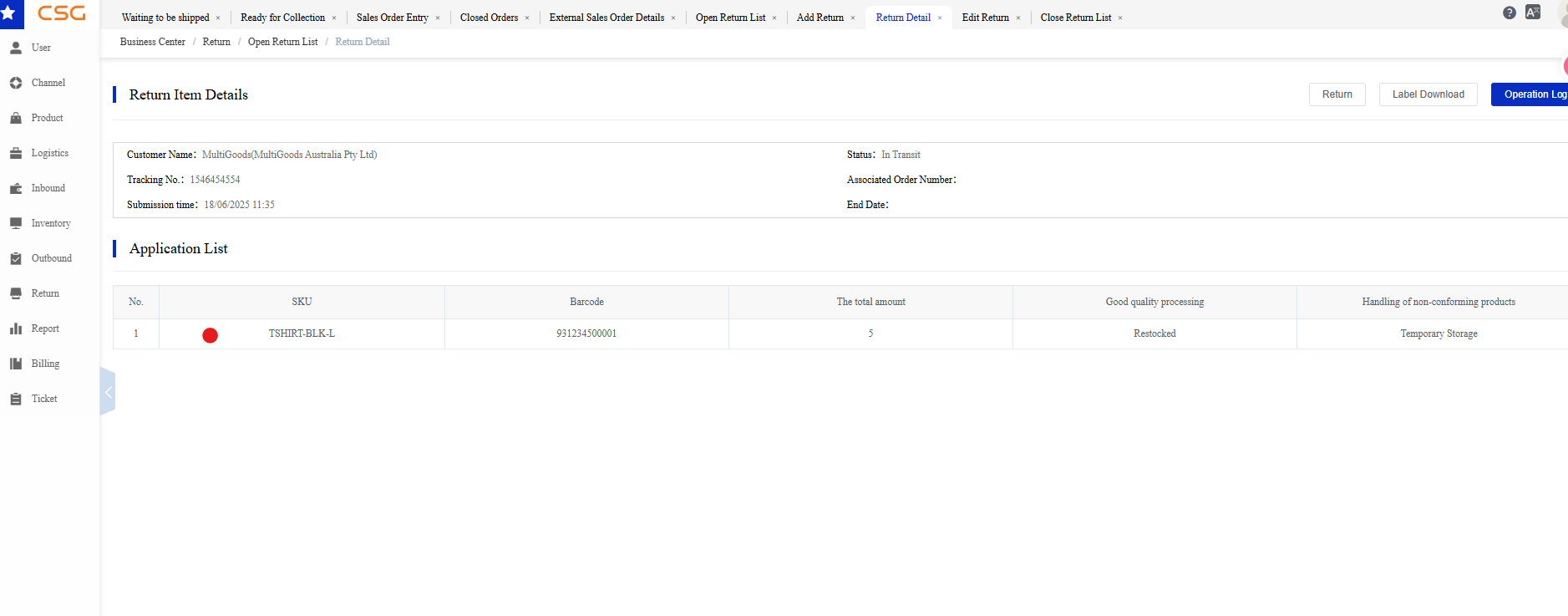
Figure 4. Open Return List screen from the CSG ERP User Manual.
Click View to display the complete return request information.
The Return Detail page includes:
| Section | Description |
|---|---|
| Return Information | Displays customer, tracking number, submission time, status, associated order number, and completion time (if available). |
| Application List | Displays the products submitted in the return request together with the requested return quantity and processing method. |
| Confirmation List | Displays the confirmed inspection result after the warehouse processes the returned goods. This section becomes available after the return is completed. |
Additional functions may include:
Return
Label Download
Operation Log
Edit Return
Click Operation -> Edit to modify an open return request.
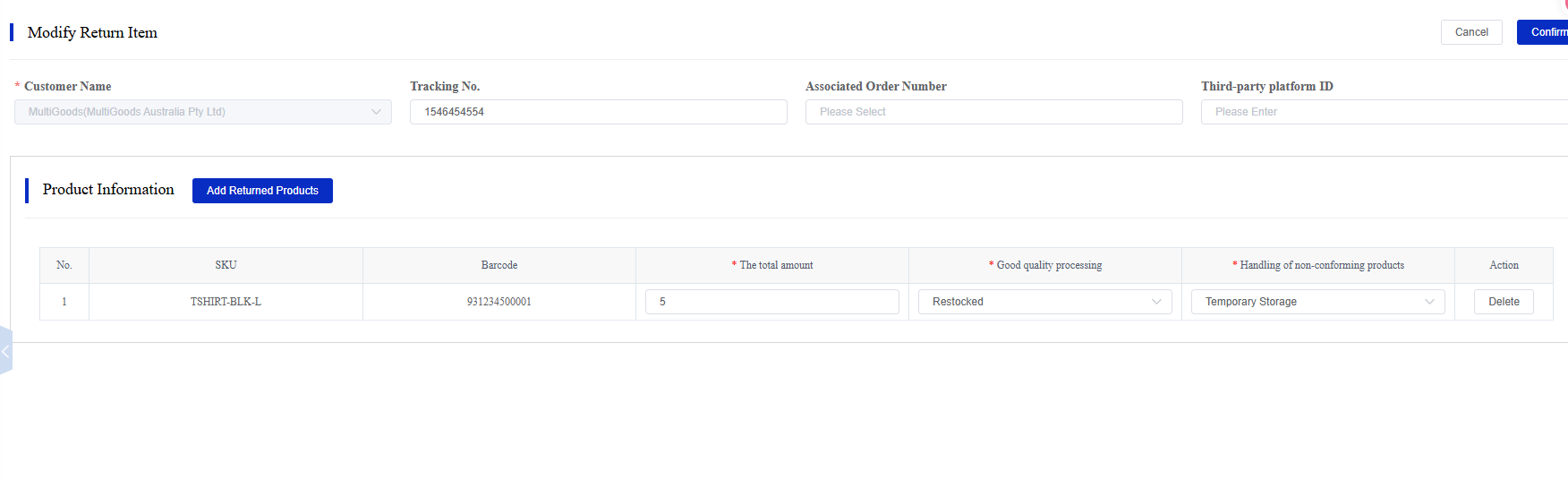
Figure 5. Open Return List screen from the CSG ERP User Manual.
Users can update:
Tracking Number
Associated Order Number
Third-party Platform ID
Returned Products
Return Quantity
Good Quality Processing
Handling of Non-conforming Products
Click Confirm to save the changes.
Notes
Only return requests that are still open can be edited.
12.3 Close Return List
Overview
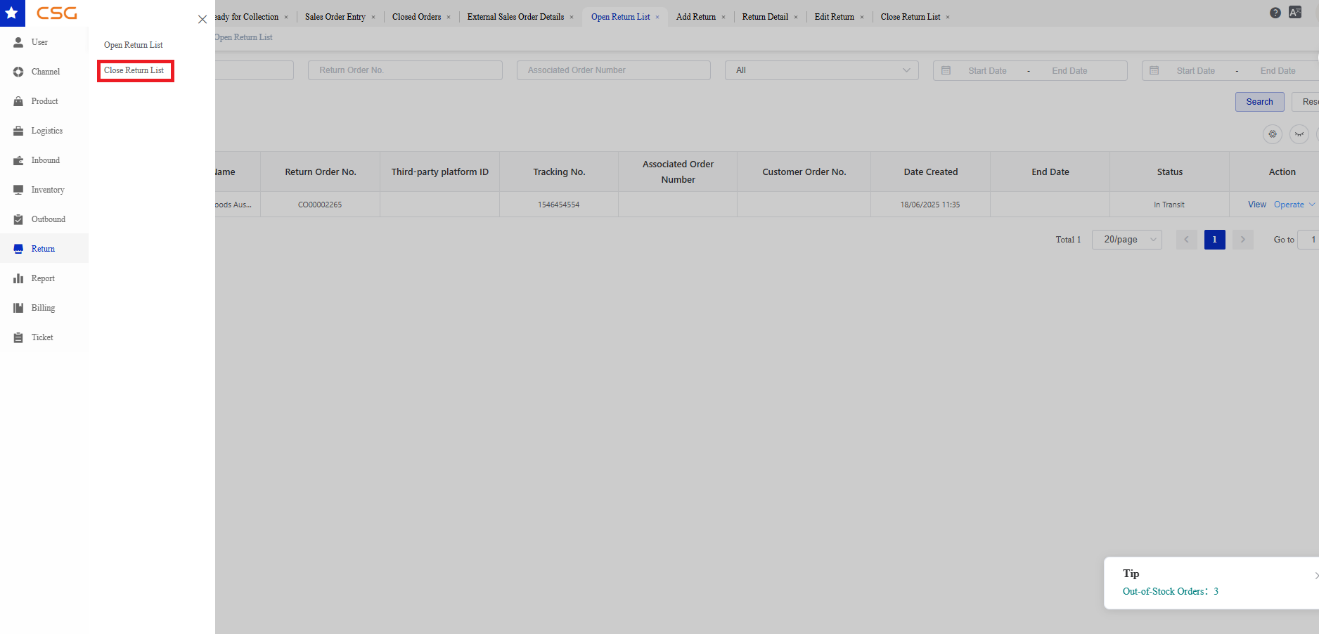
Figure 6. Close Return List screen from the CSG ERP User Manual.
The Close Return List displays return requests that have been completed.
Completed return requests are available for reference, tracking, and auditing.
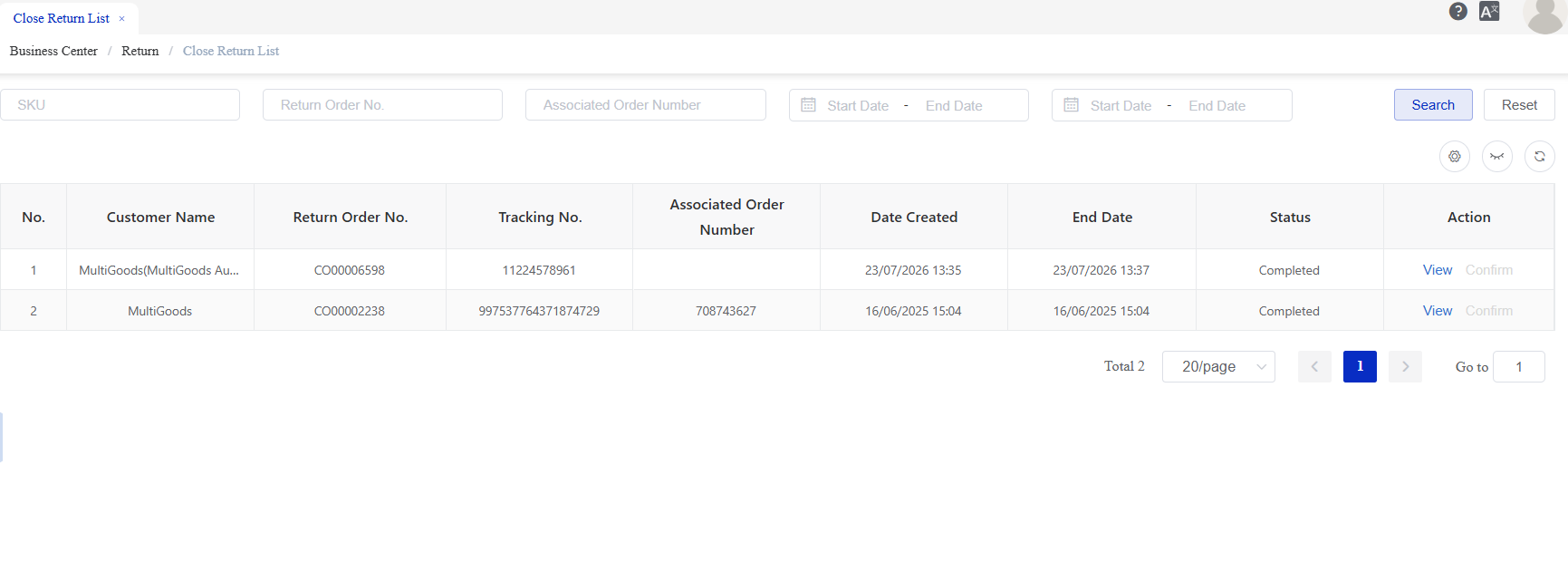
Figure 7. Close Return List screen from the CSG ERP User Manual.
Available Functions
| Function | Description |
|---|---|
| Search | Search completed return records. |
| View | View the completed return details. |
View Completed Return
Click View to display the completed return record.
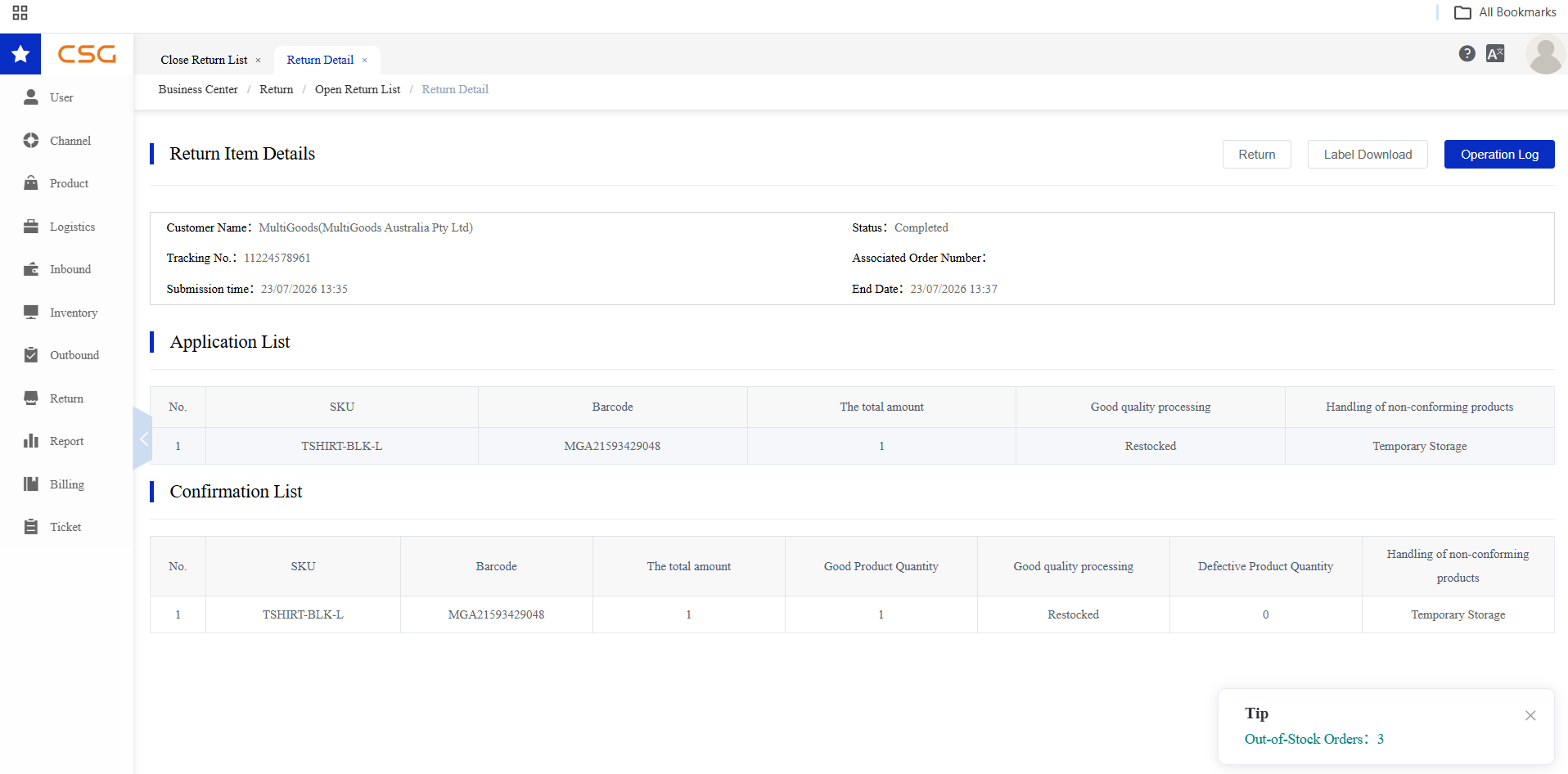
Figure 8. Close Return List screen from the CSG ERP User Manual.
The page includes:
Return Information
Application List
Confirmation List
Label Download
Operation Log
The Confirmation List displays the warehouse inspection result, including:
Confirmed returned quantity
Good product quantity
Defective product quantity
Good quality processing
Handling of non-conforming products
Good products can be returned to available inventory according to the confirmed processing result. Defective or non-conforming products are reported and handled according to the selected disposition.
Notes
Completed return records are read-only.
Completed return requests cannot be edited or deleted.
Overview
The Reports module provides statistical analysis of sales and return activities to help users monitor business performance over a selected time period.
Users can filter report data by date range and statistical period, then generate summary information.
Note: The Reports module is currently under development. Additional reporting functions and export capabilities will be added in future releases.
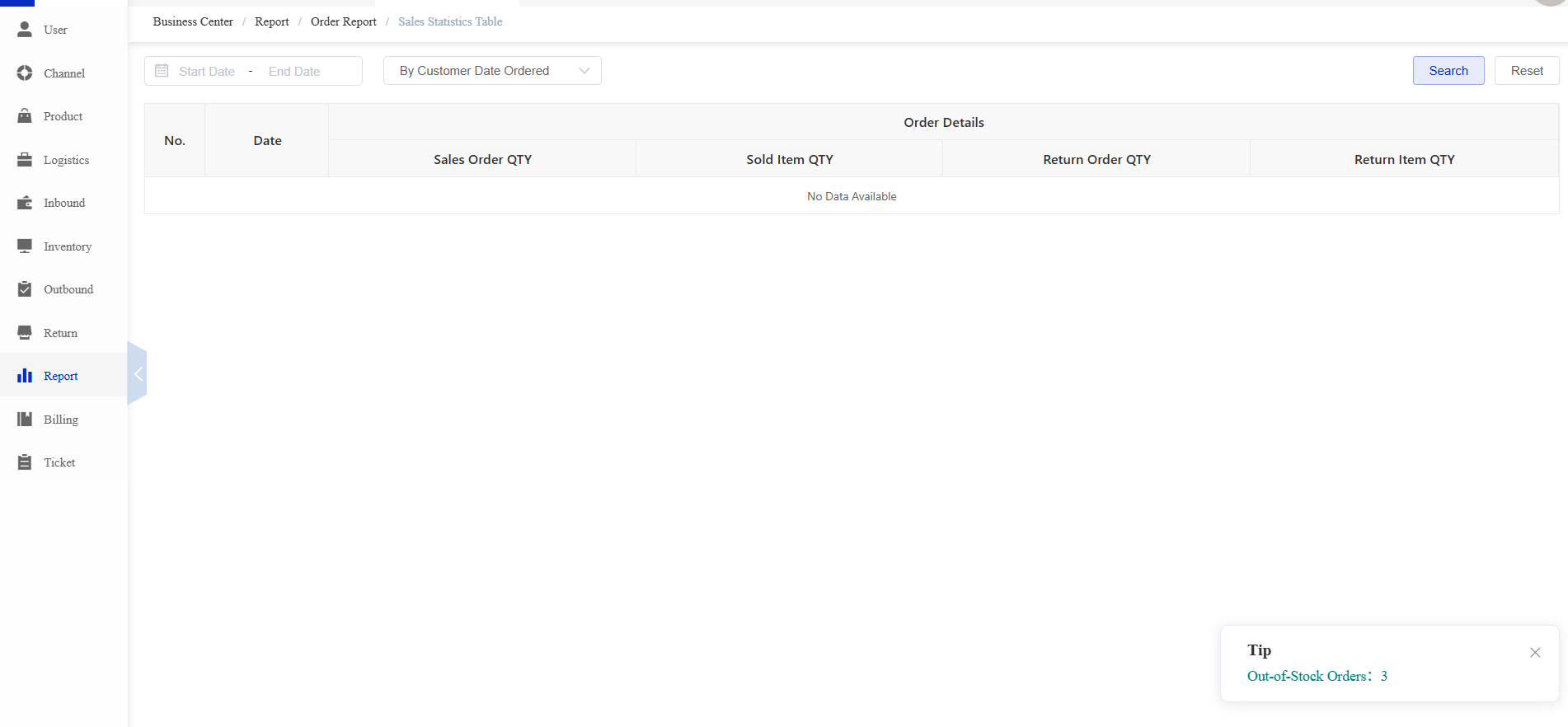
Figure 9. Close Return List screen from the CSG ERP User Manual.
Source
CSG ERP User Manual, section 12, "Returns Management".