15. Ticket
The Ticket module allows customers to raise and monitor service or operational enquiries with CSG.
15.1 Overview
The Ticket Management module allows users to create, submit, track, and manage service requests through the CSG Customer Portal.
A ticket can be assigned to a department and service type, associated with relevant business records, and supported by descriptions and attachments. Users can monitor the ticket from submission through approval, processing, confirmation, and closure.
The Ticket module includes:
Open Ticket – Displays tickets that are still being drafted, approved, processed, or confirmed.
Closed Ticket – Displays completed, cancelled, or invalidated tickets retained for historical reference.
Ticket Workflow
The workflow shown on the Ticket Details page contains four main stages:
| Stage | Description |
|---|---|
| Submit | The ticket is submitted for review and approval. |
| Approve | The ticket is reviewed and approved by the responsible team. |
| In Process | The assigned department or operator processes the request. |
| Confirm | The completed work is reviewed and confirmed before the ticket is closed. |
Note: The exact actions available at each stage depend on the ticket status, assigned department, operator, and user permissions.
15.2 Open Ticket
15.2.1 Overview
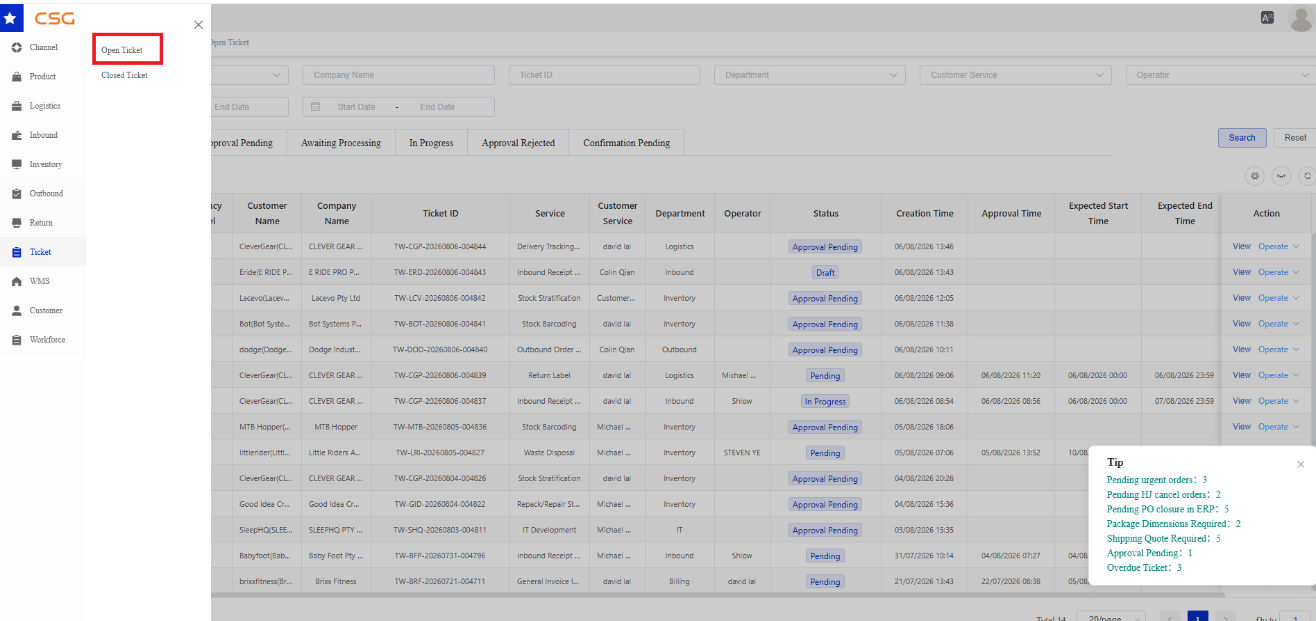
Figure 1. Overview screen from the CSG ERP User Manual.
Navigation
Ticket → Open Ticket
The Open Ticket page displays tickets that have not yet been completed or cancelled.
Users can:
Search active tickets
View tickets by processing category
Create a new ticket
Export ticket records
View ticket details
Perform available ticket operations
Monitor approval and processing dates
15.2.2 Open Ticket Categories
15.2.2.1 All
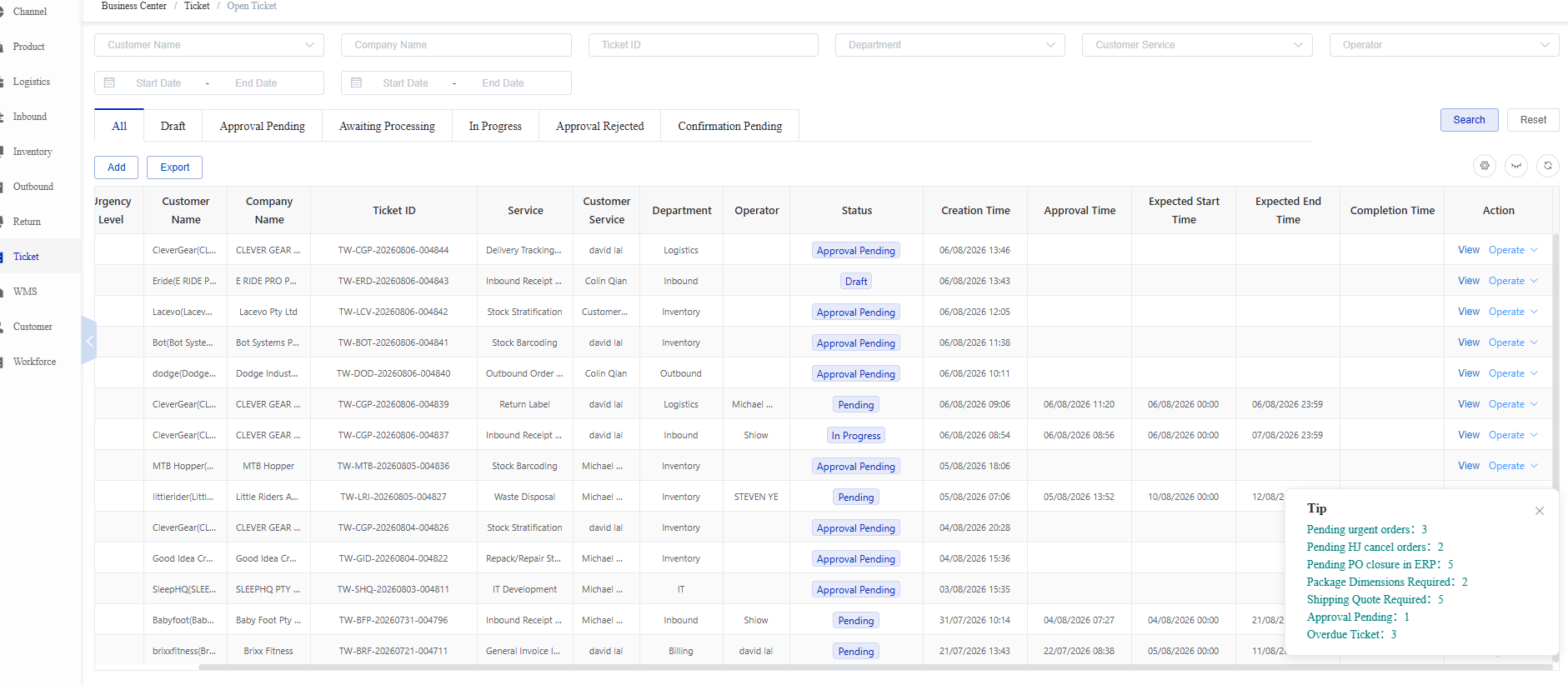
Figure 2. All screen from the CSG ERP User Manual.
The All tab displays every open ticket regardless of its current status.
Use this tab to review all active tickets from a single page.
15.2.2.2 Draft
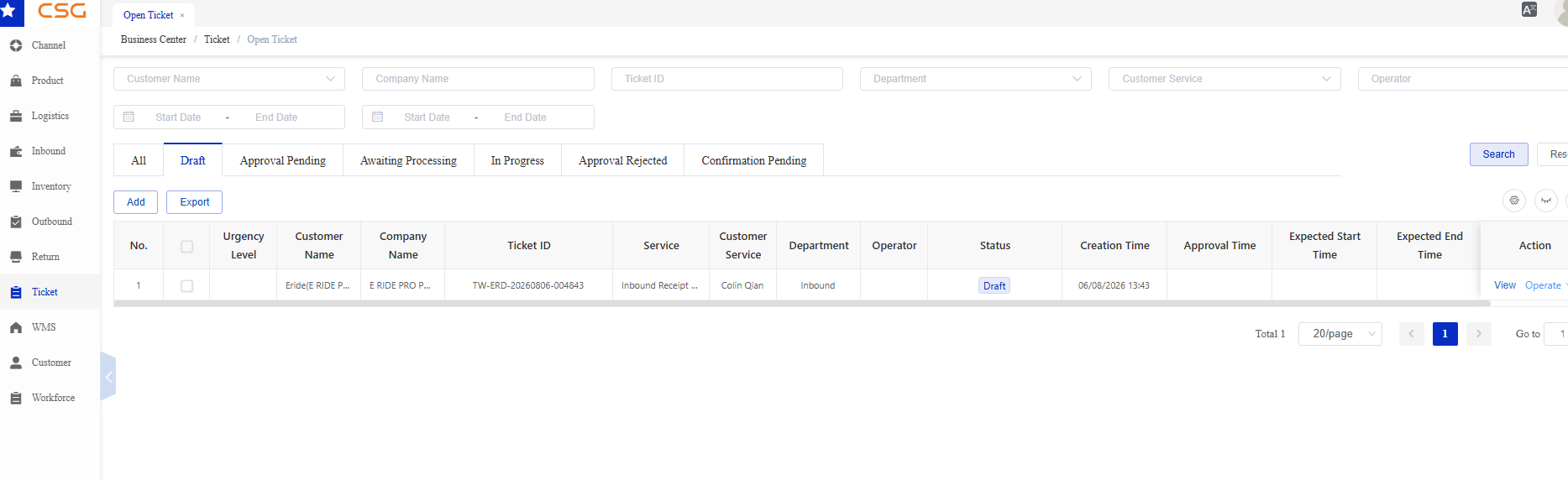
Figure 3. Draft screen from the CSG ERP User Manual.
The Draft tab displays tickets that have been saved but not yet submitted. Draft tickets can be reviewed and completed before entering the approval workflow.
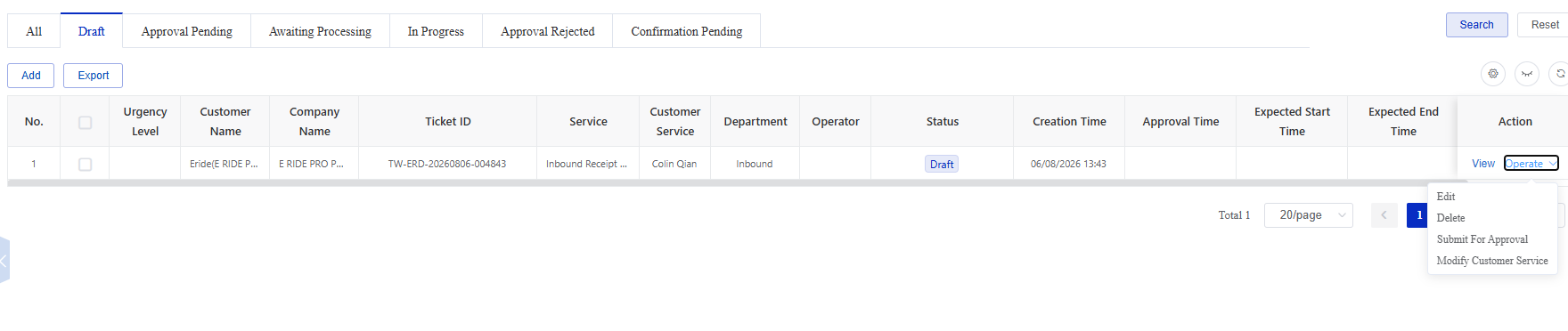
Figure 4. Draft screen from the CSG ERP User Manual.
Typical actions include:
View the draft ticket
Continue editing the ticket
Add or remove relevant categories
Upload supporting files
Submit the ticket when ready
Note: Saving a ticket does not submit it for approval. The ticket remains in Draft until Submit is selected.
15.2.2.3 Approval Pending
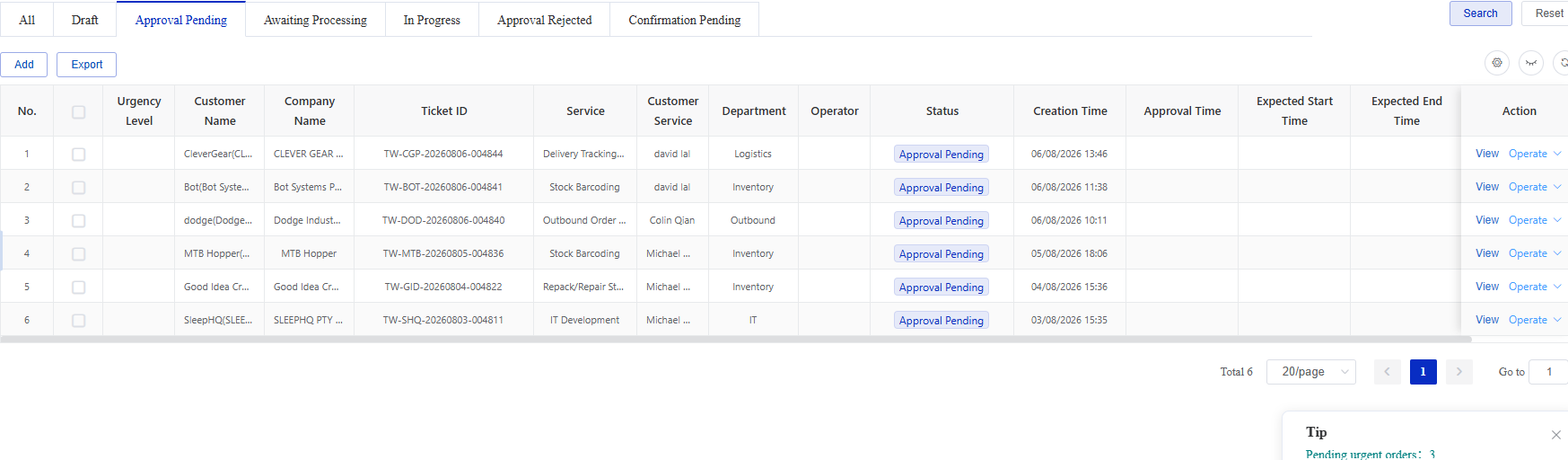
Figure 5. Approval Pending screen from the CSG ERP User Manual.
The Approval Pending tab displays submitted tickets that are waiting for approval.
At this stage:
The ticket has entered the approval workflow.
The responsible approver reviews the request.
The ticket cannot proceed to processing until approval is completed.
If approved, the ticket normally moves to Awaiting Processing.
If rejected, it moves to Approval Rejected.
15.2.2.4 Awaiting Processing
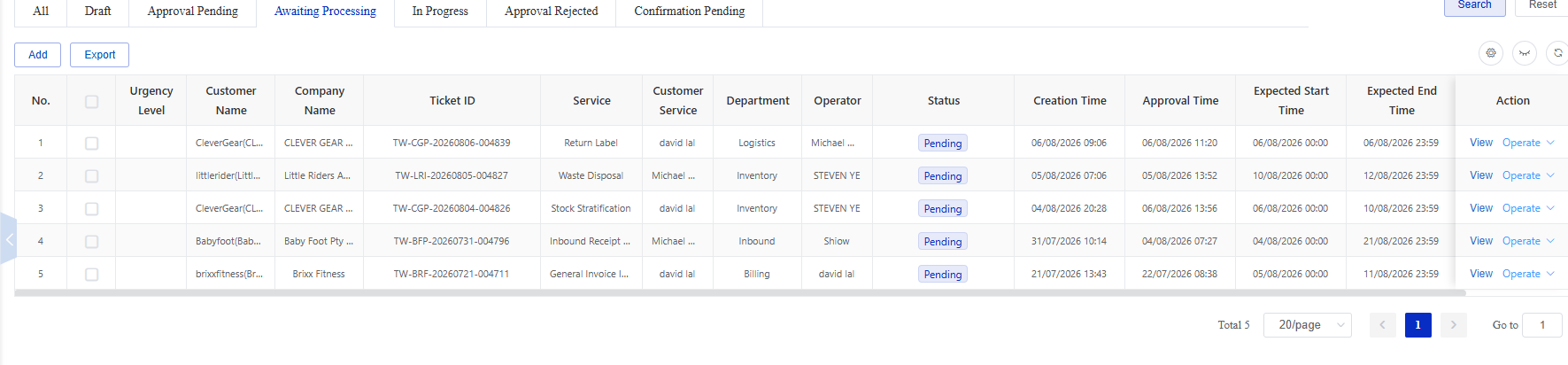
Figure 6. Awaiting Processing screen from the CSG ERP User Manual.
The Awaiting Processing tab displays approved tickets that are waiting to be processed by the assigned department or operator.
The list may show:
Assigned department
Assigned operator
Approval time
Expected start time
Expected end time
Current status
The status may appear as Pending while processing has not yet started.
15.2.2.5 In Progress

Figure 7. In Progress screen from the CSG ERP User Manual.
The In Progress tab displays tickets that are currently being handled by the assigned department or operator.
Users can monitor:
Assigned operator
Current status
Expected completion time
Processing progress
Available ticket operations
Once the requested work has been completed, the ticket normally moves to Confirmation Pending.
15.2.2.6 Approval Rejected
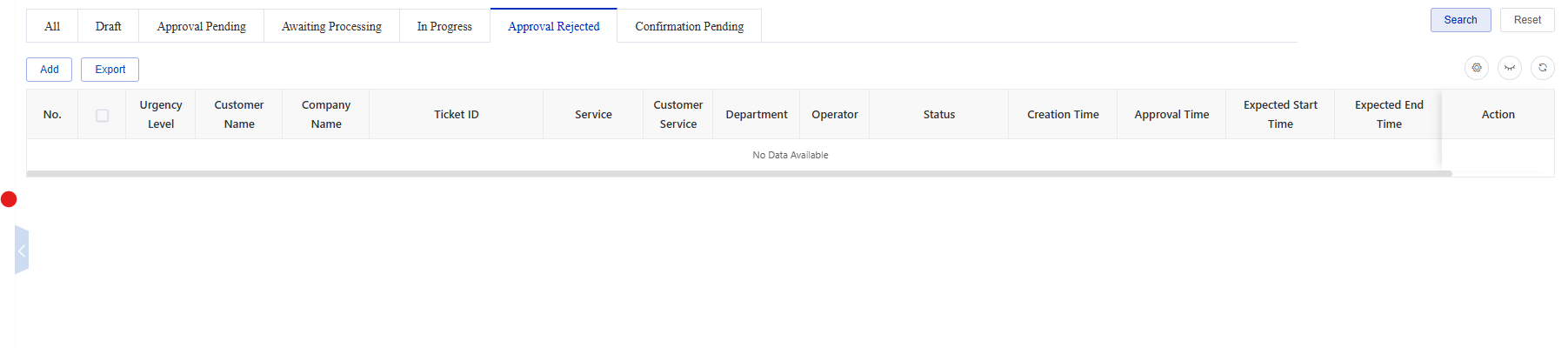
Figure 8. Approval Rejected screen from the CSG ERP User Manual.
The Approval Rejected tab displays tickets that were rejected during the approval stage.
Users should:
Open the ticket using View.
Review the available rejection information or operation history.
Correct the ticket information where permitted.
Perform the available corrective or resubmission action.
Note: Available actions depend on the ticket status and user permissions.
15.2.2.7 Confirmation Pending
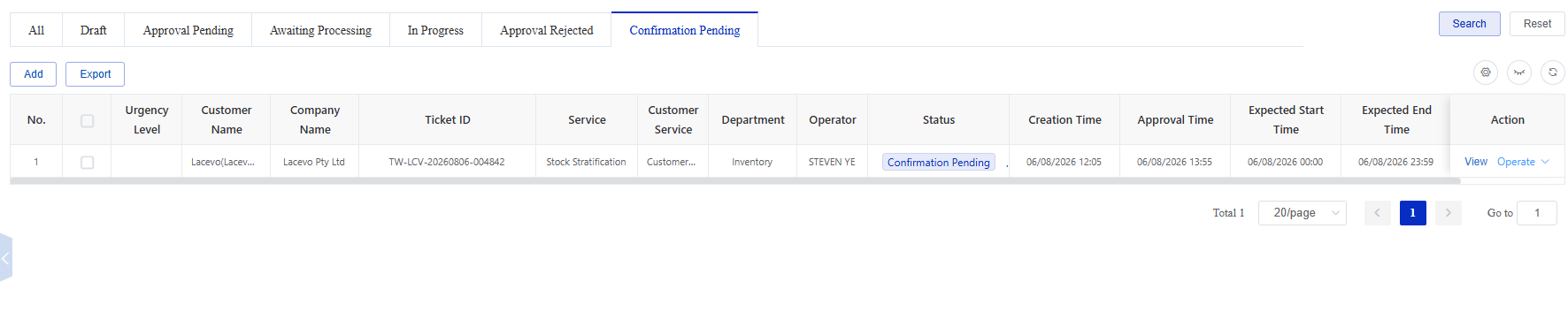
Figure 9. Confirmation Pending screen from the CSG ERP User Manual.
The Confirmation Pending tab displays tickets for which processing has been completed but final confirmation is still required.
Users should review the completed service information before confirming the ticket.
Once confirmation is completed, the ticket moves to Closed Ticket → Completed.
15.2.3 Search Open Tickets
Users can search open tickets using one or more filter conditions.
| Field | Description |
|---|---|
| Customer Name | Filter tickets by customer account. |
| Company Name | Search by the customer’s company name. |
| Ticket ID | Search by the unique ticket reference. |
| Department | Filter tickets by the department responsible for the request. |
| Customer Service | Filter tickets by the assigned customer service representative. |
| Operator | Filter tickets by the operator responsible for processing the ticket. |
| Date Range | Search for tickets within the selected date period. |
Steps
Navigate to Ticket → Open Ticket.
Select the required ticket category.
Enter one or more search conditions.
Click Search.
Review the matching tickets.
Click Reset to clear all search conditions.
15.2.4 Open Ticket Information
The Open Ticket list may display the following information.
| Field | Description |
|---|---|
| No. | Sequence number of the ticket record. |
| Urgency Level | Priority level assigned to the ticket. |
| Customer Name | Customer associated with the ticket. |
| Company Name | Customer’s company name. |
| Ticket ID | Unique ticket reference assigned by the system. |
| Service | Type of service requested. |
| Customer Service | Customer service representative associated with the ticket. |
| Department | Department responsible for handling the ticket. |
| Operator | Staff member assigned to process the ticket. |
| Status | Current ticket status. |
| Creation Time | Date and time when the ticket was created. |
| Approval Time | Date and time when the ticket was approved. |
| Expected Start Time | Planned start date and time for processing. |
| Expected End Time | Planned completion date and time. |
| Completion Time | Actual ticket completion date and time, where available. |
| Action | Available actions, including View and Operate. |
15.2.5 Common Functions
| Function | Description |
|---|---|
| Add | Create a new ticket. |
| Export | Export ticket records based on the current category and search conditions. |
| View | Open the Ticket Details page. |
| Search | Search tickets using the selected filter conditions. |
| Reset | Clear all search conditions. |
Note: Operate-menu options vary according to the ticket status, department, operator, and user permissions.
15.2.6 View Ticket
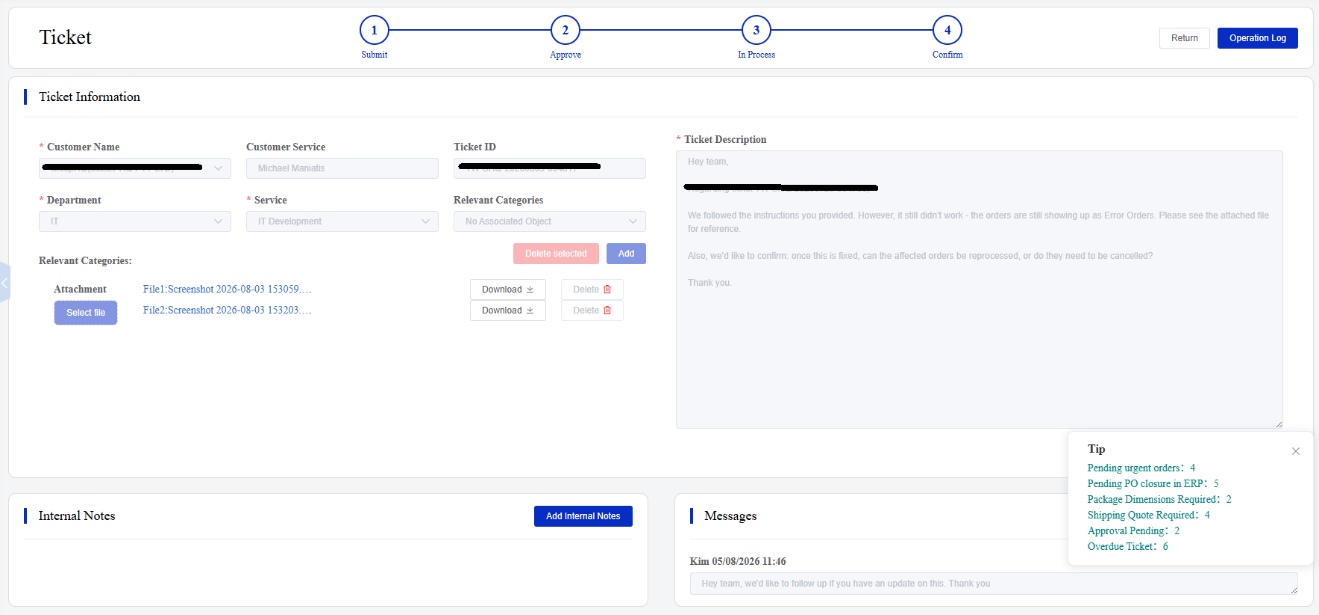
Figure 10. View Ticket screen from the CSG ERP User Manual.
Click View to open the Ticket Details page.
The page displays the ticket workflow and all submitted information in read-only mode.
Workflow
The top of the page displays the current workflow stage:
Submit
Approve
In Process
Confirm
Ticket Information
The Ticket Information section may display:
Customer Name
Customer Service
Ticket ID
Department
Service
Relevant Categories
Ticket Description
Attachments
Relevant Category Information
Associated records may include:
Product Name
SKU
Barcode
Quantity or count
Other category-specific information
Attachments
Uploaded files are displayed on the page.
Click Download to download and review an attachment.
Operation Log
Click Operation Log to view the ticket’s activity history.
The log may record:
Ticket creation
Submission
Approval or rejection
Status changes
Assigned operator
Processing activities
Confirmation
Other user operations
Return
Click Return to go back to the ticket list.
15.2.7 Add Ticket
Overview
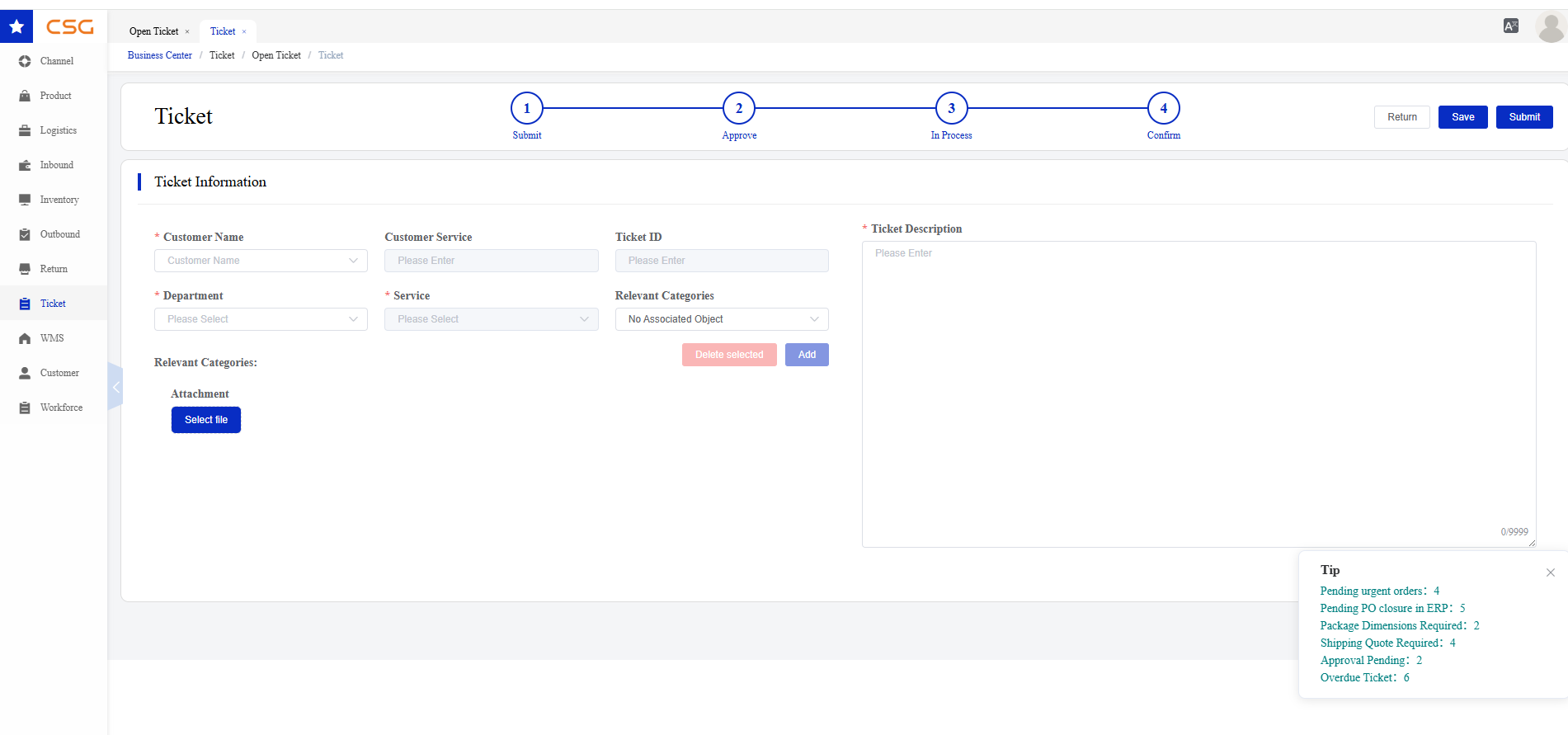
Figure 11. Add Ticket screen from the CSG ERP User Manual.
The Add function allows users to create a new service ticket and submit it to the appropriate department.
Navigation
Ticket → Open Ticket → Add
The ticket can be saved as a draft or submitted into the approval workflow.
Ticket Information
| Field | Required | Description |
|---|---|---|
| Customer Name | Must | Select or confirm the customer associated with the ticket. |
| Customer Service | System/Conditional | Displays the customer service representative associated with the account. |
| Ticket ID | System | Unique ticket reference assigned by the system. |
| Department | Must | Select the department responsible for handling the request. |
| Service | Must | Select the required service type. Available services may depend on the selected department. |
| Relevant Categories | Optional/Conditional | Select the type of business record to associate with the ticket, such as a product or SKU. |
| Ticket Description | Must | Provide a clear description of the issue or service request. The field supports up to 9,999 characters. |
| Attachment | Optional | Upload supporting documents, images, spreadsheets, or other files relevant to the request. |
Department and Service
The Department identifies the team responsible for handling the ticket.
Examples shown in the system include:
Inventory
Logistics
Inbound
Outbound
Billing
IT
The Service identifies the specific request within the selected department.
Examples may include:
Stock Inspection
Stock Take
Stock Stratification
Delivery Tracking
Return Label
Order Status Inquiry
Inbound Receipt Inquiry
ERP Technical Issue
Note: Available departments and services depend on system configuration.
Relevant Categories
The Relevant Categories function allows users to associate the ticket with related business records.
Depending on the selected category, the associated-record list may display:
| Field | Description |
|---|---|
| Count | Number of associated records. |
| Product Name | Name of the associated product. |
| SKU | SKU associated with the ticket. |
| Barcode | Product barcode, where available. |
| Action | Remove the selected associated record. |
Steps
Select a Relevant Category.
Click Add.
Select the required business record.
Confirm the selection.
Review the associated records displayed in the list.
Use Delete Selected to remove selected records from the ticket.
Important: Add relevant records whenever they can help the responsible team identify and process the request. For example, an inventory-check ticket should include the affected SKU.
Attachment
The Attachment section allows users to upload supporting files.
Attachments may include:
Inventory lists
Screenshots
Order documents
Shipping documents
Spreadsheets
Supporting evidence
After a file has been uploaded, it is displayed on the Ticket Details page and can be downloaded for reference.
Ticket Description
The Ticket Description should clearly explain:
The issue or service request
The affected product, order, shipment, or system area
The expected result
Any relevant quantities or dates
Any action already taken
Any supporting file attached to the ticket
A clear description helps the assigned department process the ticket accurately and efficiently.
Save and Submit
| Function | Description |
|---|---|
| Save | Save the ticket as a Draft without submitting it for approval. |
| Submit | Submit the completed ticket into the approval workflow. |
| Return | Return to the previous page without continuing the current operation. |
Steps
Complete the required Ticket Information.
Select the Department and Service.
Add relevant categories where applicable.
Upload supporting attachments where required.
Enter a detailed Ticket Description.
Click Save to retain the ticket as a Draft, or click Submit to begin the approval process.
15.2.8 Ticket Operations
Draft Operations
The Draft category contains tickets that have been saved but have not yet been submitted for approval.
Because the ticket has not entered the formal approval and processing workflow, the creator can still modify, delete, submit, or change the assigned Customer Service representative.
The following operations are available for Draft tickets.
Edit
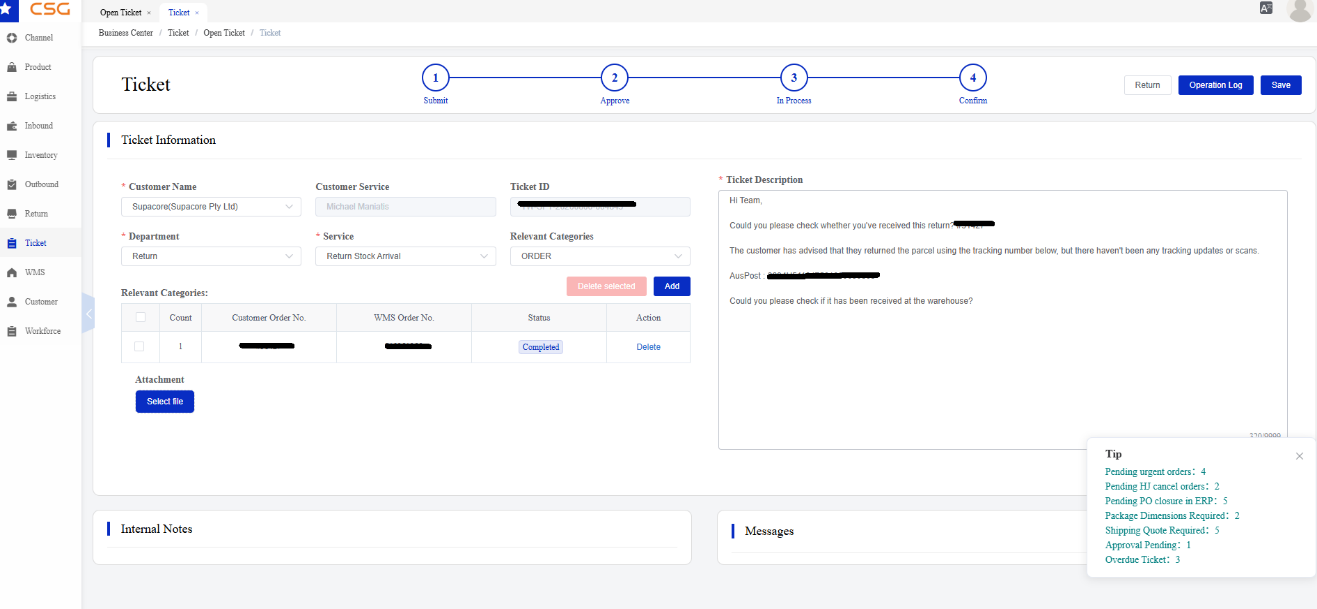
Figure 12. Ticket Operations screen from the CSG ERP User Manual.
The Edit function allows users to continue updating a ticket before it is submitted for approval.
Users may update information such as:
Department
Service
Relevant Categories
Ticket Description
Attachments
Other editable ticket details
This function is available in the Draft category because the ticket has not yet entered the approval workflow.
After submission, editing may become restricted because approvers and processing teams may already be reviewing or acting on the submitted information.
Steps
Locate the required Draft ticket.
Click Operate.
Select Edit.
Update the required information.
Click Save to keep the ticket as a Draft, or submit it when ready.
Note: Review the Department, Service, Ticket Description, Relevant Categories, and attachments carefully before submission.
Delete
The Delete function permanently removes a Draft ticket that is no longer required.
This function is available only in the Draft category because the ticket has not yet been submitted, approved, assigned, or processed.
Once a ticket enters the approval workflow, it should normally be cancelled rather than deleted so that the system can retain a record of the submitted request and its workflow history.
Steps
Locate the required Draft ticket.
Click Operate.
Select Delete.
Review the ticket information.
Confirm the deletion.
Important: A deleted Draft ticket cannot normally be restored.
Submit for Approval
The Submit for Approval function sends the completed Draft ticket into the approval workflow.
This operation changes the ticket from an editable draft into a formal service request awaiting review.
After submission, the ticket moves from:
Draft -> Approval Pending
This function is available only in the Draft category because a ticket can be submitted for approval only once it has been prepared but has not yet entered the approval process.
It is not available in later categories because those tickets have already been submitted.
Steps
Open or review the Draft ticket.
Confirm that all required fields are complete.
Check the Ticket Description and associated records.
Confirm that the correct Department and Service have been selected.
Upload any required attachments.
Click Operate.
Select Submit for Approval.
Confirm the submission.
Important: Saving a ticket does not submit it. The ticket remains in Draft until Submit for Approval is selected.
Modify Customer Service
The Modify Customer Service function allows an authorised user to change the Customer Service representative associated with the ticket.
This operation is available in Draft because the ticket may need to be reassigned before submission. It may also remain available in later categories because the responsible Customer Service representative may need to change while the ticket is being approved, processed, or confirmed.
This function changes only the Customer Service assignment. It does not change:
Department
Service
Processing Operator
Ticket status
Workflow stage
Steps
Locate the required Draft ticket.
Click Operate.
Select Modify Customer Service.
Select the new Customer Service representative.
Confirm the change.
Note: The change may be recorded in the ticket’s Operation Log.
Why Other Operations Are Not Available in Draft
The following operations are not available because the Draft ticket has not entered the relevant workflow stage:
Cancel is not required because an unsubmitted Draft can be deleted directly.
Edit Estimated Time is not available because the ticket has not been approved, assigned, or scheduled for processing.
Confirm Charges is not available because no service work has been completed and there are no charges ready for customer confirmation.
15.3 Closed Ticket
15.3.1 Overview
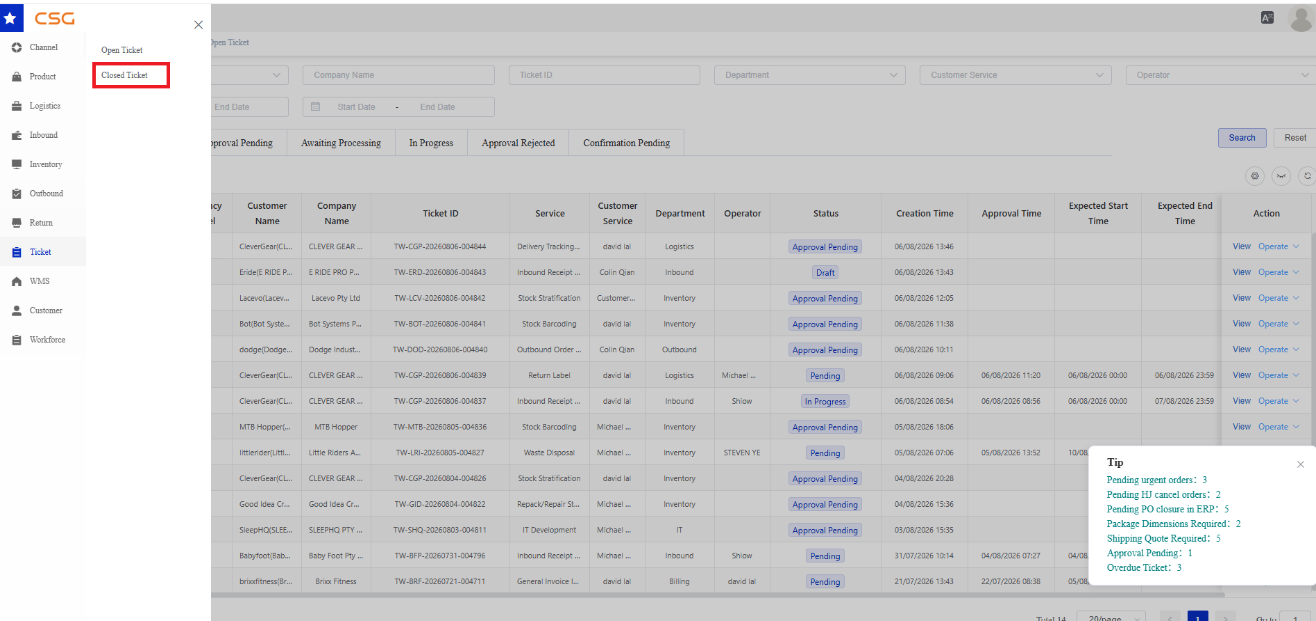
Figure 13. Overview screen from the CSG ERP User Manual.
Navigation
Ticket → Closed Ticket
The Closed Ticket page displays tickets that have reached the end of their lifecycle.
Closed tickets are retained for historical reference, service review, reporting, and auditing.
The page contains three categories:
All
Completed
Cancelled
Users can:
Search closed tickets
Create a new ticket
Export ticket records
View ticket details
Perform limited post-completion operations where available
15.3.2 Search Closed Tickets
Closed tickets can be searched using the following filters:
| Field | Description |
|---|---|
| Customer Name | Filter by customer. |
| Company Name | Search by company name. |
| Ticket ID | Search by unique ticket reference. |
| Department | Filter by responsible department. |
| Customer Service | Filter by customer service representative. |
| Operator | Filter by assigned operator. |
| Date Range | Search within the selected date period. |
Click Search to display matching records.
Click Reset to clear all filters.
15.3.3 Closed Ticket Information
The Closed Ticket list may display:
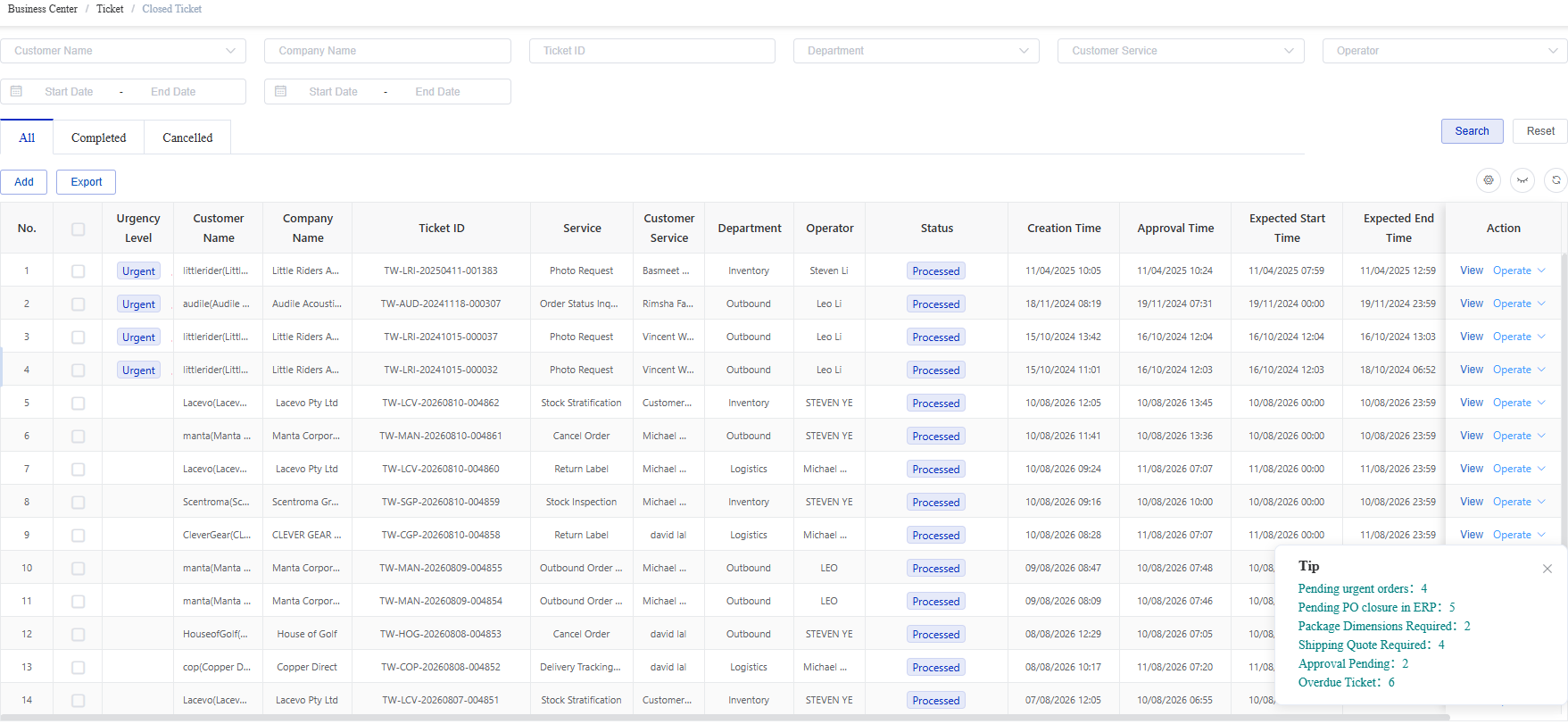
Figure 14. Closed Ticket Information screen from the CSG ERP User Manual.
| Field | Description |
|---|---|
| Operator | Staff member who processed the ticket. |
| Status | Final ticket status. |
| Creation Time | Date and time when the ticket was created. |
| Approval Time | Date and time when approval was completed. |
| Expected Start Time | Planned processing start time. |
| Expected End Time | Planned processing completion time. |
| Completion Time | Actual date and time when processing was completed. |
| Action | Available actions, including View and eligible post-completion operations. |
15.3.4 Closed Ticket Categories
All
The All-tab displays both completed and cancelled tickets.
The actions available depend on the final ticket status.
Completed
The Completed tab displays tickets that have successfully completed the full ticket workflow.
Completed tickets may display the status:
Processed
Users can view the completed ticket and perform eligible post-completion operations.
Cancelled
The Cancelled tab displays tickets that were cancelled or invalidated before successful completion.
Cancelled tickets may display the status:
Invalidated
These records are retained for historical reference and auditing.
15.3.5 Available Functions
| Function | Description |
|---|---|
| Add | Create a new ticket. This does not reopen an existing closed ticket. |
| Export | Export closed-ticket records based on the selected category and filters. |
| View | Open the complete Ticket Details page. |
| Confirm Charges | Confirm service-related charges for an eligible completed ticket. |
| Modify Customer Service | Change or update the Customer Service assignment for an eligible ticket. |
Confirm Charges
The Confirm Charges function allows users to review and confirm charges associated with a completed service ticket.
This function is available only for eligible tickets.
Important: Review the ticket and charge details carefully before confirming, as confirmation may affect billing records.
Modify Customer Service
The Modify Customer Service function allows an authorised user to update the Customer Service representative associated with the ticket.
Availability depends on the ticket status and user permissions.
Notes
Processed tickets represent successfully completed tickets.
Invalidated tickets represent cancelled or invalidated tickets.
Closed-ticket information is retained for reference and auditing.
Operate options may be unavailable for certain statuses.
Creating a ticket from the Closed Ticket page creates a new ticket and does not modify an existing closed record.
Source
CSG ERP User Manual, section 15, "Ticket".